


- Details
- Category: FTH4
-
By Richard Taylor
- Hits: 280
Agenda Forecaster
A special tool for the VPE!
The Agenda Forecaster provides a way to auto-populate future agendas. This can save your VPE time between and during club meetings.
This is an agenda management tool. The VPE must still communicate with club members to ensure the agenda is ready for the next meeting.
The Agenda Forecaster functions as a predictive tool that auto-assigns roles based on each member's role participation history.
The VPE and the Club Admin have access to this module by default. Other officers can be given access to the module if the club wishes.
If you are the Club Admin, you'll find it in the the 'Officer Centric' section of the Admin Console.
Access the Agenda Forecaster by opening the 'Manage Meetings' module and selecting it from the row of buttons below the page header.
Step 1 - Forecast settings
Set the time period. This tells the Forecaster how many past agendas to use.
'Apply Forecast to' is set to determine the number of future agendas to include. (The maximum is 7 future agendas.)
Set the member exclusion list as appropriate.
The role tables shown below the settings are grouped by meeting role and populated with member names according to the Forecast settings.
Step 2 - Run Forecast
Select the 'Run Forecast' button in the top right corner of the settings area. This will update the role tables with the settings you selected.
Study these tables. It shows the last time a member performed each role.
If a role table shown here shows something that is not an actual meeting role, you must fix a past agenda.
Step 3 - Continue to Forecast Agenda Roles
Select the button Continue to Forecast Agenda Roles
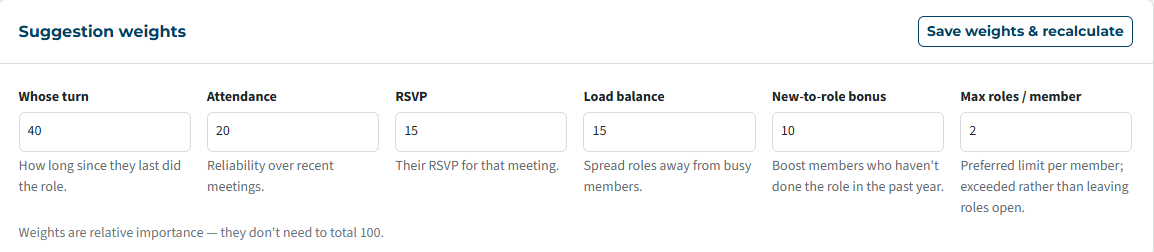
The top section of the Forecast is the Suggestion Weights. The numbers shown are starting point settings. You may adjust them to tune the behavior of the Forecaster to suit your club.
Reference this image at any point in the future if you wish to return FTH's starting values.
The Role Assignments table shows all of the Forecasted roles for the number of future meetings you selected in the settings. (Step 1)
The 'Role Assignments' table has two display modes.
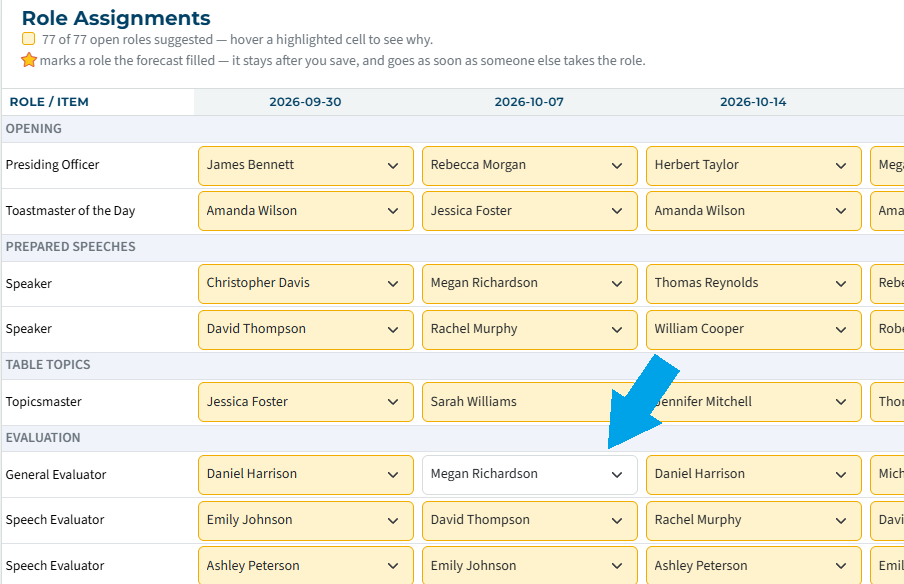
The first display mode shows member names in gold boxes. This gold box indicates that the Forecaster assigned the member to the role.
Future agendas have NOT yet been populated by these Forecasted roles.
You can adjust roles assignments here if desired by clicking the down-arrow next to each person's name.
Manually changing role assignments removes the gold box color for easy tracking as you prepare to forecast your future agendas.
Step 4 - Apply the Forecasted roles to the future agendas
When you are satisfied with the role assignments select the button 'Save Assignments'.
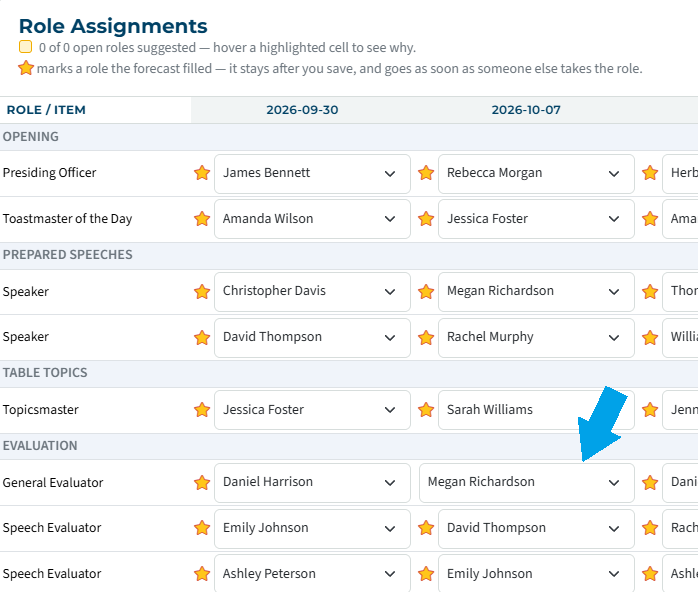
The 'Role Assignments' table changes to the second display mode.
When you select 'Save Assignments' all members in the table will receive the 'Meeting Notification' email. (Their email settings permitting.)
Future agendas HAVE been populated by these Forecasted roles.
A star next to a club member's name means the role has been assigned by the Forecaster.
Using the table
You can return to view the Forecasted roles at any time.
It is not necessary to run the Forecast again if you don't need to include any additional future meetings in the Role Assignments. (settings section).
Select 'Continue to Forecast agenda roles'.
The table will show the previously Forecasted roles. All members with a star next to their name were assigned that role by the previous Forecast.
When a role assignment on one of the Forecasted agendas is changed by an editor, the star will no longer appear in the Forecast table.
When a gold box appears this means the role is open and ready to be Forecast. This would be caused by someone dropping a role in one of the agendas that is being monitored by the Forecaster.
For example, Jessica cannot attend the Sept 30th meeting so she released the Topicsmaster role.
Notice that the Role Assignment table shows her name in the same role that she released.
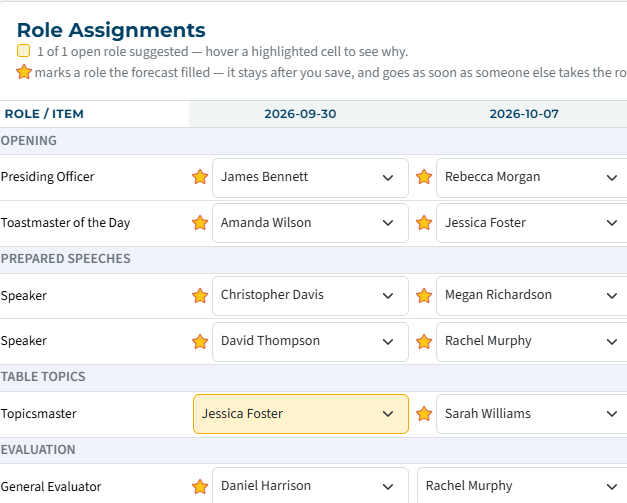
You can manually change the role here to a different person.
Or you can go to the 'Forecast settings' (step 1), add Jessica to the exclusion list then select 'Run Forecast' (step 2) followed by 'Continue to Forecast Agenda Roles' (step 3).
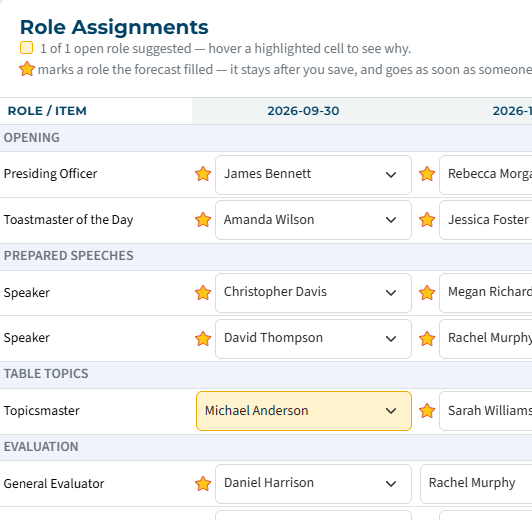
When you are satisfied with the new role assignments select 'Save Assignments' (step 4) and the 'Meeting Notification' email will be sent only to the people in the gold boxes.

Latest Forum Posts
-
- Level 4 - Create a Podcast sets incorrect timing o...
- In Public Forums / FTH4 Support
- 33 minutes ago
-
- Unable to Edit Main Heading
- In Public Forums / FTH4 Support
- 35 minutes ago
-
- "Order" column on Agenda Templates tab.
- In Public Forums / FTH4 Suggestions and Improvements
- 44 minutes ago
-
- GoAccess
- In Public Forums / FTH4 Support
- 48 minutes ago