


- Details
- Category: FTH4
-
By Richard Taylor
- Hits: 235
Meeting Venues
Defining and using your club's meeting location(s).
Venues provide a way for your club to store meeting location information for use in agenda templates, new agenda creation and in various locations in your custom content. (Main, Directions, About and custom pages)
Typical examples of this are dinner clubs that meet in various restaurants, company clubs that meet in various conference rooms, and online clubs that use changing web conference URLs. The Meeting Venues feature can also be used to handle occasional changes of meeting venues for other clubs.
Venues, while an optional feature of an agenda, are managed on the 'Venues' tab in Meeting Agenda Settings. The Venues feature is intended to complement, not replace, the existing Meeting Information & Directions page. Most clubs will likely continue to use their Meeting Information & Directions page to list the details of their single meeting venue that they meet in for each meeting, and that should be fine for them.
Officers can be granted access to the Agenda settings module as needed. The Club Admin will find this module in the 'Officer Centric' section of the admin module.
Set a default venue (optional)
The Meeting Agenda Settings module opens on the Global Settings tab. A default venue can be defined here. This default will automatically be applied to a new meeting agenda that is created without using a template. If your agenda template does not have a Venue defined, applying the template will adopt this default venue.
On this Global Settings tab the Add venue button (and when a default is set, the Edit venue details & links button) are the same as creating a new venue and managing existing venues on the Venues tab.
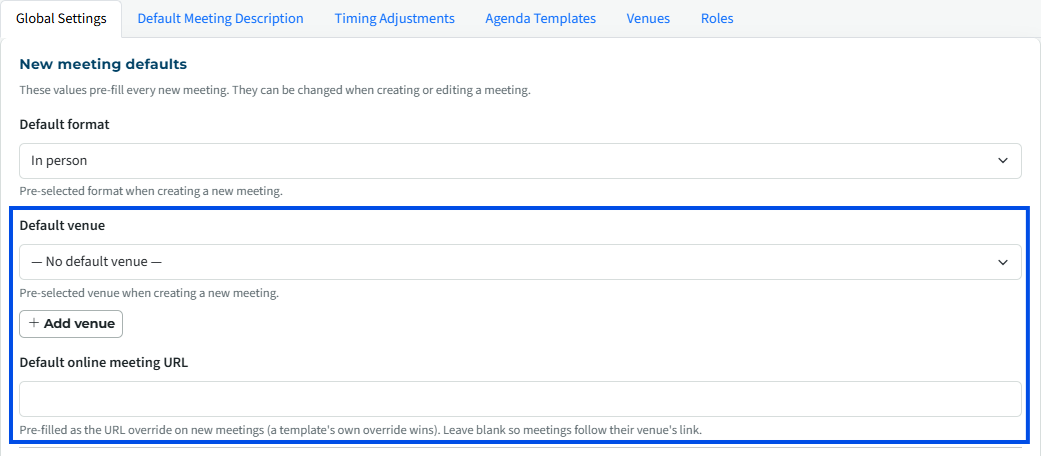
A 'Default online meeting URL' can be set here to ensure new non-template meeting agendas contain your club's online meeting URL.
The Venues Tab
In the Meeting Agenda Settings module, navigate to the 'Venues' tab.
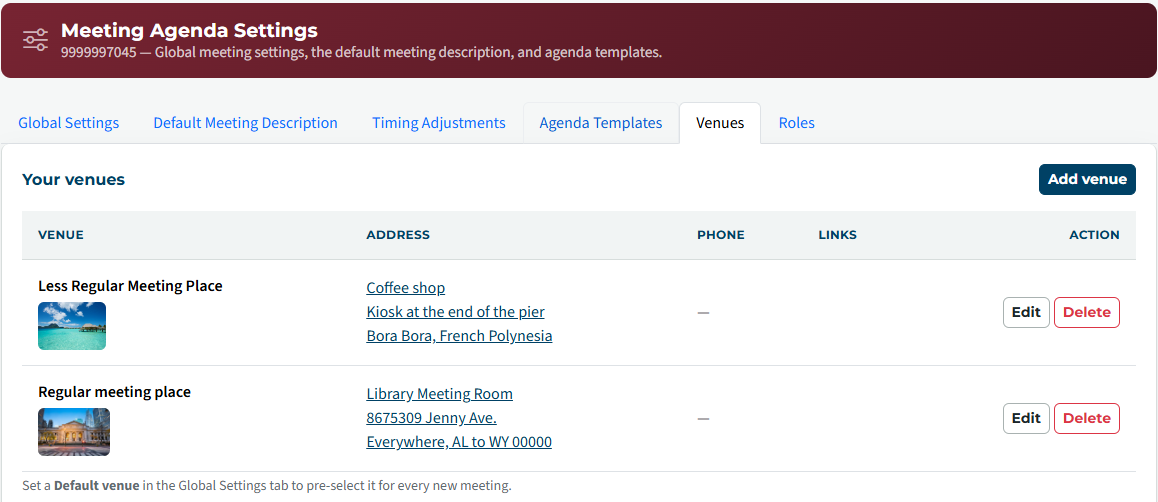
In addition to creating new venues (a function that is also available on the Global Settings tab and in Agenda Templates), this is where you can edit and delete existing Venues.
This page also shows the live URLs that are defined in each Venue; the 'Online meeting URL' and the 'Info / website URL'. One or two items will appear in the 'Links' column.
e.g. in the image below, the Links column show the 'Online link' (Online meeting URL) and 'Info' (Info / website URL).
Clicking on the Venue Address will open the map page. This will be either the Google Map obtained by the Address field or the map defined in the 'Map URL' field.
You may create and store as many venues as needed for your club. They are always managed here.
Add venue
Whether you select Add venue on the Global Settings tab or the Venues tab, the same form is presented.
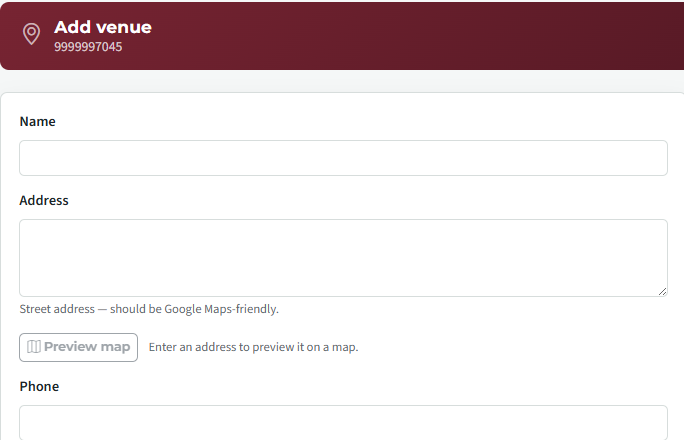
The only piece of information that is required to be entered to create a Meeting Venue is the Name. Other than this, everything else is optional--you can enter as much or as little information as you need for a Meeting Venue. The functionality is designed to work with whatever information you provide.
- Name (required) - This is the name or description of the venue that appears on the Venues tab and shows up in the drop-down selection lists. It may be an actual venue name or it could be totally made up.
- Address (optional) - If you enter this, the system will attempt to provide a link to a Google Map. You can test whether the address you entered will result in the correct Google map if you click the Preview map button below this box after you enter the address.
Note: If you want to use the Google map functionality for a meeting venue, then you *must* enter a physical venue address. If you instead enter a Google Maps URL in the 'Info / Website URL' box, you will find that the maps functionality is not integrated with the use of that URL. (Also see 'Map URL' below) - Phone Number (optional) - This can be useful for meeting venues where you need to confirm a reservation with the manager of the venue. For example, if your club is a dinner club that meets in restaurants.
- Online Meeting URL (optional) - Use to share address/link to online meeting venue such as Zoom, MS Teams, WebEx, etc. When you enter a valid URL here, (e.g., https://zoom.us/j/2323), the system code will convert that to a clickable link wherever it shows up.
- Info / website URL (optional) - Use to provide a link to an informational web page on your website (e.g., a custom web page) or somewhere else. When you enter a valid URL here (e.g., https://yourclub.toastmastersclubs.org/mtgflyer), the system code will convert that to a clickable link wherever it shows up.
Note: This box is not intended for supplying a Google Maps URL. See the Address (above) & 'Map URL' (below) notes about that. - Map URL (optional) - This is used to provide a map from a different provider. An entry here will override the Google Map that is auto-generated from the Address.
- Notes (optional) - This is a "miscellaneous" information field that is intended for saving anything that is not entered in the other boxes. Use this to convey special instructions for meeting attendees, or you might enter information about the meeting room features: "This meeting room has a projector that we can use for presentations."
- Meeting Venue Photo (optional) - This allows you to include a photo of a meeting venue. This is useful if your club members are unfamiliar with the meeting venue or are attending a meeting there for the first time.
Hybrid clubs; be sure to include both the 'Address' and the 'Online meeting URL'.
Making Use of Venues
Once you have added at least one Meeting Venue as detailed above, there are several ways you can make use of the Venue information.
Using Venues in Agenda Templates
When creating new or editing existing Agenda Templates the Venue drop-down list will show all the available venues that are listed on the Venues tab.
The Add venue button on the Agenda Template is the same new venue form seen in other places.
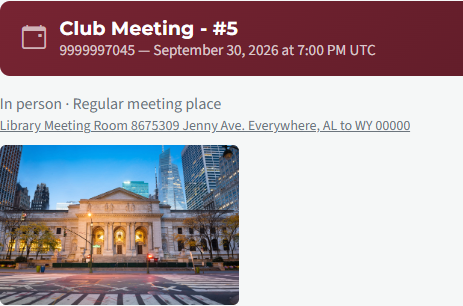
- Keep in mind that if you created a dated agenda from an Agenda Template, any Meeting Venue that was set in the Agenda Template would also be set in the resulting dated agenda that was created from it.
- Keep in mind that what you actually see in the Agenda Sign-up Screen depends a lot on how much (and what) information you entered for the specific Meeting Venue. The FreeToastHost system software will try to do the best it can to produce useful information on the Sign-up Screen based on the Meeting Venue information that you entered.
Meeting Venue Information in Emailed Agendas
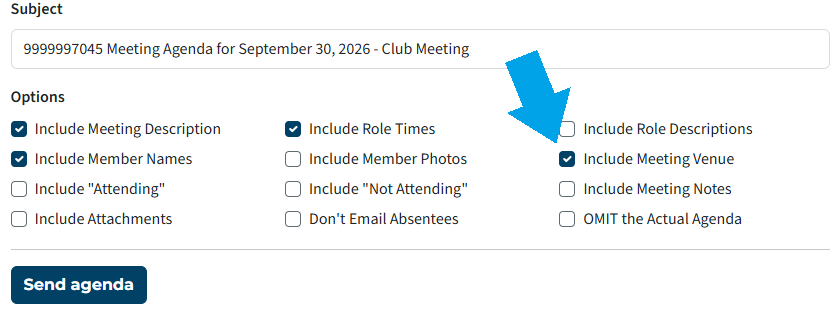
Similar to the Meeting Venue information shown on the Agenda Sign-up Screen, the Meeting Venue Information for your meeting can be included in Emailed Agendas. Be sure to enable the option to include it in the Emailed Agenda:
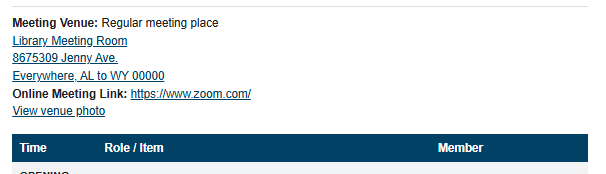
As seen in the email received by club members:
Meeting Venue Information in Printed Agendas
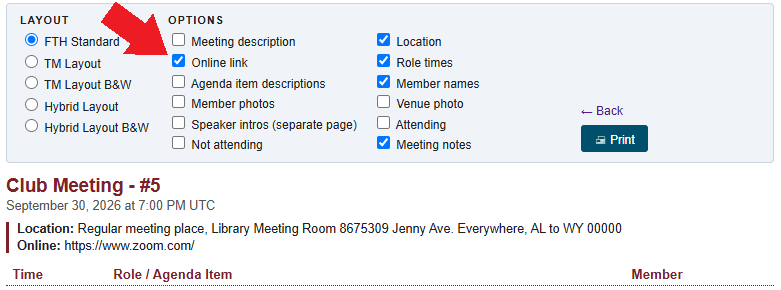
The Venue address is included in printed agendas.
Consider un-checking the 'Online link' option unless your URL is short and easy to read.
Meeting Venue Information in custom site content & emails/email templates
Built-in pages that allow custom content, such as the Main, About and Directions pages, as well as custom web pages created by clubs can utilize web page variables that access meeting venue information.
On the right side of any page that accepts custom content, select the Webpage variables drop-down list. The last section in this list is 'Next meeting venue info'.
If you are familiar with the use of Web Page variables and Email Variables, you will notice that there are some variables available for the Meeting Venue information for the next meeting. You can insert these variables into web pages and agenda emails. You can even insert the variables into the Meeting Information & Directions page to make it dynamically update to show the correct Meeting Venue information for your next meeting.
Be aware that these variables will show the information related to the venue for the next meeting. If the 'next meeting' does not have a venue these variables will not function.
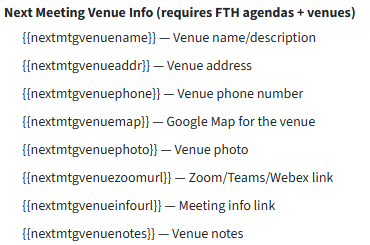
- When you use the {{nextmtgvenuename}} variable, the system code will replace it with the name of your venue.
- When you use the {{nextmtgvenueaddr}} variable, the system code will replace it with your venue address.
- When you use the {{nextmtgvenuephone}} variable, the system code will replace it with the phone number saved with the venue.
- When you use the {{nextmtgvenuemap}} variable, the system code will show your venue address on a Google map with the 'Open in maps' link.
- When you use the {{nextmtgvenuephoto}} variable, the system code will replace it with a image (<img>) element that will fill the entire width (100%) of the space you put it in. This is as designed. If you need the width to be narrower, then you should place the variable in something that you can use to control the width--for example, a single row, single cell table, or a <div> element. If you need assistance to get the width right, please post a support request in the support forums.
- When you use the {{nextmtgvenuezoomurl}} variable, the system code will replace it with a clickable link that is directed to the web page corresponding to the URL you entered for the Online Meeting Link Address. Note that while the variable name references "Zoom" meetings, the variable can be used to retrieve the URL/link for any online meeting type.
- When you use the {{nextmtgvenueinfourl}} variable, the system code will replace it with a clickable link that is directed to the web page corresponding to the URL you entered for the Meeting Venue Info Link / Web Page Address.
- When you use the {{nextmtgvenuenotes}} variable, the system code will replace it with the notes saved with your venue profile.

Latest Forum Posts
-
- Level 4 - Create a Podcast sets incorrect timing o...
- In Public Forums / FTH4 Support
- 35 minutes ago
-
- Unable to Edit Main Heading
- In Public Forums / FTH4 Support
- 36 minutes ago
-
- "Order" column on Agenda Templates tab.
- In Public Forums / FTH4 Suggestions and Improvements
- 45 minutes ago
-
- GoAccess
- In Public Forums / FTH4 Support
- 49 minutes ago