


- Details
- Category: FTH4
-
By Jane Atkinson
- Hits: 468
Club calendar
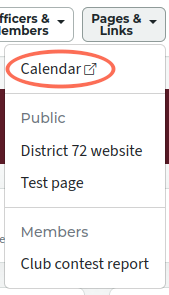
To access the club calendar, select the "Calendar" link in the Pages & Links drop-down.
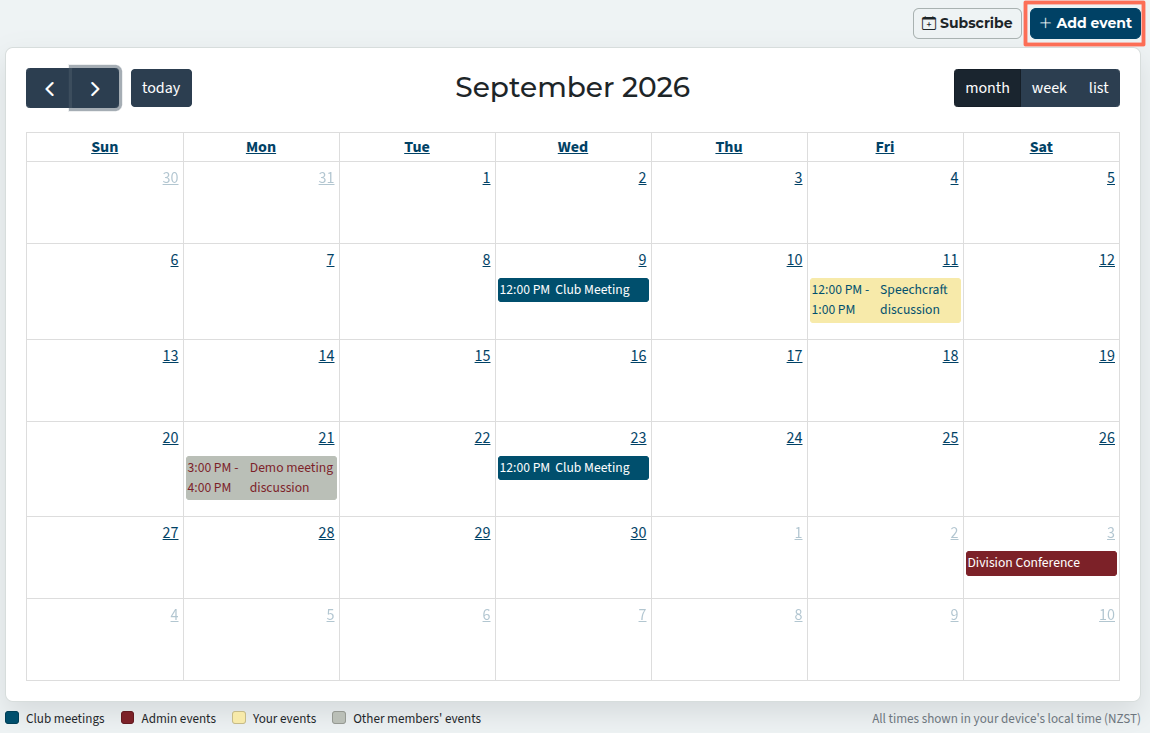
The calendar has three views: monthly (the default — above), weekly, and a list of upcoming events.
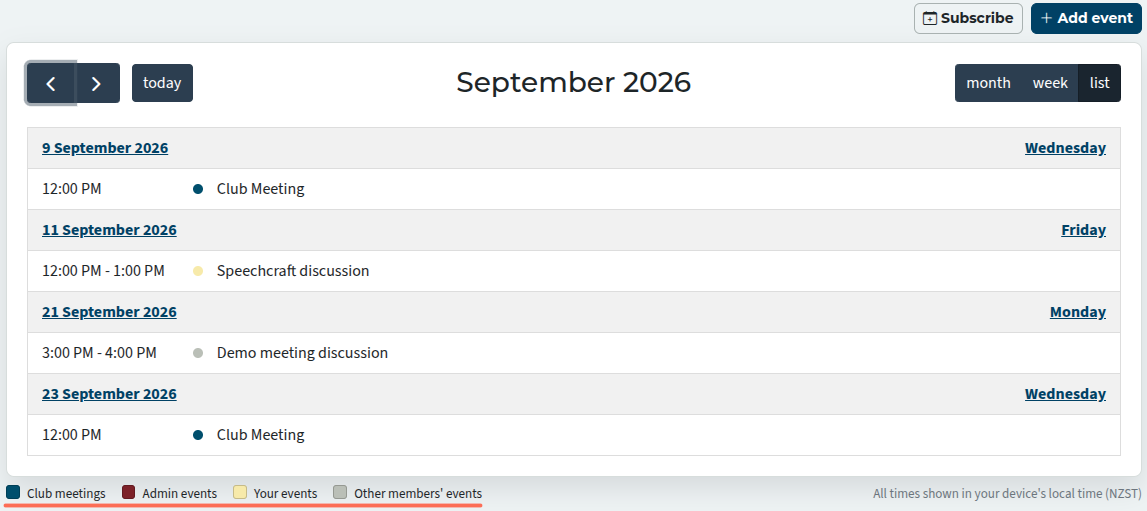
Events are colour-coded (underlined in "list" image). Meetings are in blue. Admin-added events are in maroon. Member-added events are in grey . Anything that you have added as a user is shown in yellow while you are logged in.
Add and edit events
To add an event, you can click on the Add Event button and fill in the details.
Another option is to click on the date in question, and alter/fill in the details. If you are in the week view, you can click and drag to select the time range.
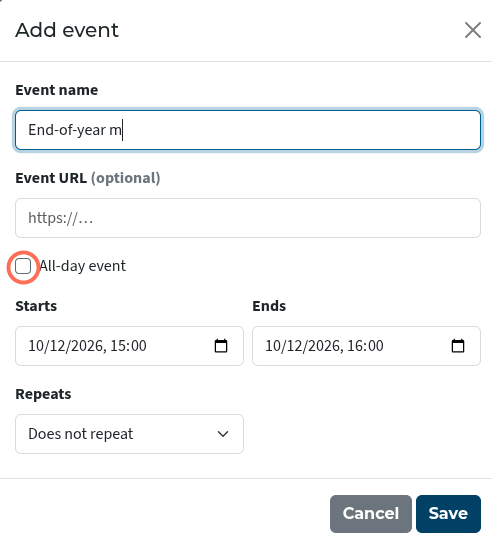
Click on the all day event checkbox (circled) if that applies to your event.
Repeating events
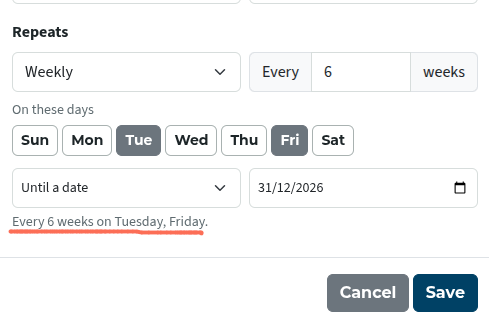
Under Repeats, you have the options of weekly, monthly and yearly.
Weekly
- Choose the day(s). You may select more than one, such as Tuesdays and Thursdays.
- Choose every one or more weeks between occurrences. The default is one week (weekly), or you can select a larger number, such as every six weeks.
Monthly
The options are:
- The same date each month,
or - Selected week(s) of the month
- You may choose which day of the week in those weeks, but only a single day.
Yearly
You can specify one or more years between occurrences.
- This has to be on the date of the first occurrence. No other choices are available.
A nice feature is the summary in plain English of what you have selected (underlined in the image above).
For example:
- Every month on the first and third Tuesday, or
- Every 2 weeks on Tuesday, Thursday.
For all three options, you can choose between keep repeating (ongoing), until a certain date, or for a set number of times.
You can edit or delete a single occurrence in a series. Click on the occurrence you want to edit. Make the changes and choose whether it applies just to this instance or everything after it as well. Likewise, you can delete just this one occurrence or everything following it as well.
Editing or deleting an event
You can edit or delete an event by clicking on it and either making changes and saving, or clicking on the red delete button (not shown above) to remove it.
No one except the club admin can remove anyone else's events. Club meetings (blue colour) are controlled by the agenda function and can't be deleted separately from the calendar.
The times shown on the calendar are in your computer's timezone. This can be very useful for determining the times of online international events; no calculation is necessary.
Points to note
Though you may be able technically to add events as a user, your club exec may have a policy that only officers and the club admin may do so, or that only certain types of events are eligible. Check first before adding an event.
Be aware also that the calendar is public and any events added, plus their links, can be seen by anyone.
Subscribe to the calendar
You can add the club calendar to your calendar program on your device by subscribing.
Click on the Subscribe button next to Add Event.
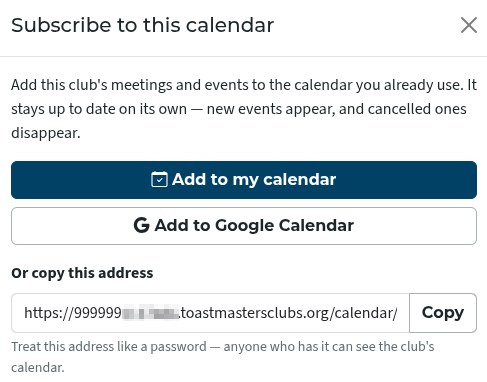
If you use Google Calendar, just click on that button.
If you use other calendars, you can try "Add to my calendar".
If that doesn't work, try using "copy this address" to set up a new calendar manually. (The address is a lot longer than what is shown here.)
The calendar is read-only. You can't create a new event from your calendar program. You need to log into the website to do that.

Latest Forum Posts
-
- header in an Agenda
- In Public Forums / FTH4 Support
- 1 minute ago
-
- Live timer sheet
- In Public Forums / FTH4 Support
- 14 minutes ago
-
- FTH Emails Not Going Through
- In Public Forums / FTH4 Support
- 17 minutes ago
-
- Not able to open club web site
- In Public Forums / FTH4 Support
- 23 minutes ago
-
- Members's input attending is not saved in Attendan...
- In Public Forums / FTH4 Support
- 26 minutes ago