


- Details
- Category: FTH4
-
By Jane Atkinson
- Hits: 483
Editing agendas and templates
Adding a role
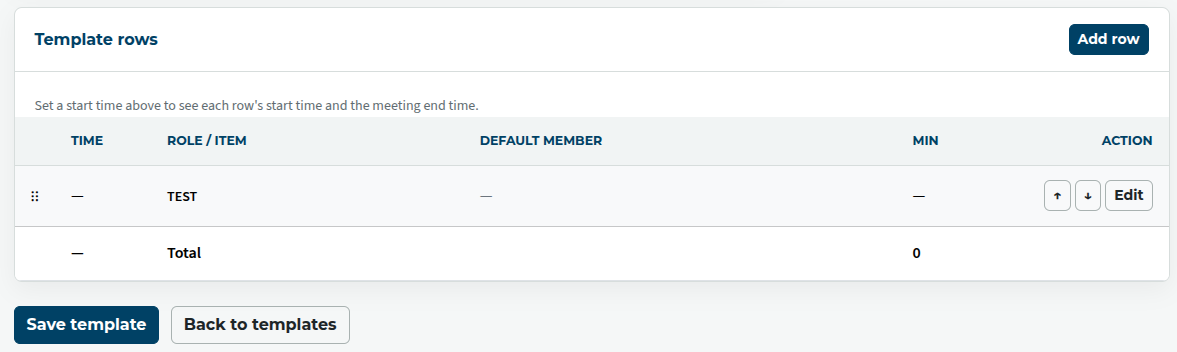
Click on the Add Row button
Fill in the relevant details. Many of them are self-explanatory.
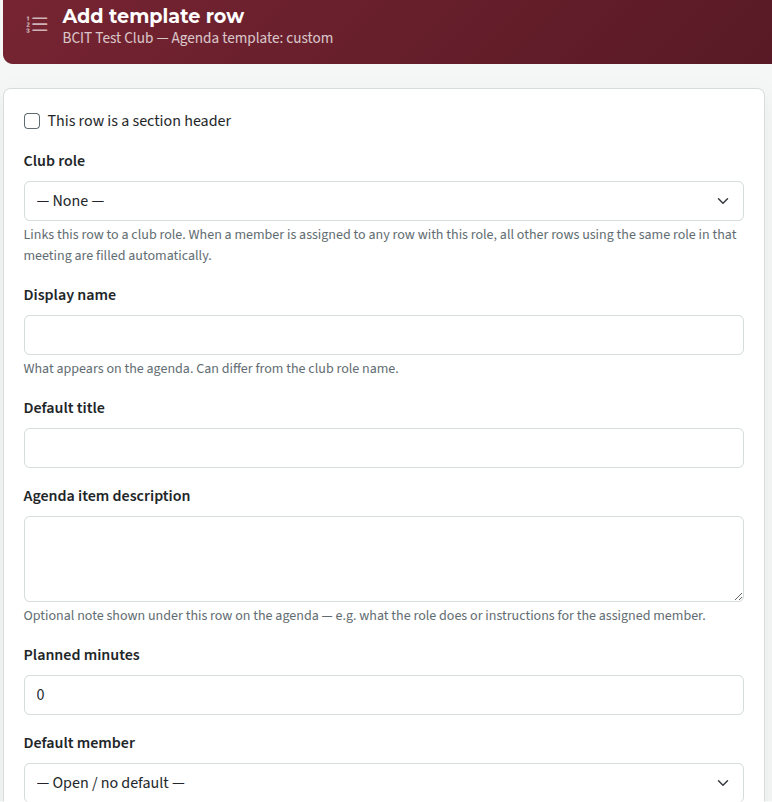
The club role setting links together several agenda items that are done by the same roleholder. eg. "Toastmaster opens meeting", "Toastmaster introduces General Evaluator" can be linked to the overall "Toastmaster of the day" role and counted as part of the same meeting role.
"This row is a section header" sets up a row with a title only and a different coloured background. There is no member name and no timing attached to it. This is useful for distinguishing sections of the meeting: e.g. "speaking roles", "evaluations", "reports".
A member's name can be assigned to a role if the role will be taken by the same person at each meeting. e.g. "Sergeant at arms opens the meeting", "President's comments".
Click on "Add Row" (at the bottom) and save.
You can re-order rows by either dragging on the button at the left-hand end of the row, or by using the up and down arrows.
Editing a row
Click on the Edit button on the right-hand end of a row. Changes can be made, the same as for adding a row.
Deleting a row
Click on the Edit button, as above. Then click on the Delete button at the bottom of the edit window.
You will get an "Are you sure" popup notice. There is no further "save" option.

Latest Forum Posts
-
- header in an Agenda
- In Public Forums / FTH4 Support
- Just now
-
- Live timer sheet
- In Public Forums / FTH4 Support
- 13 minutes ago
-
- FTH Emails Not Going Through
- In Public Forums / FTH4 Support
- 16 minutes ago
-
- Not able to open club web site
- In Public Forums / FTH4 Support
- 23 minutes ago
-
- Members's input attending is not saved in Attendan...
- In Public Forums / FTH4 Support
- 25 minutes ago