• Register for Support
  • Request a FTH 4 Website
  • Sample Club Website
  • Sample District Website
  •      Login
  •      Search
  •                          

  • Home
  • Forum
    • FTH4 Support
    • FTH4 Suggestions and Improvements
    • FTH4 Best Practices
    • FTH4 Read Only archive
    • FTH3 Archive READ ONLY
    • Private Messages (PM)
  • How to use FreeToastHost
    • FTH4 documentation indexFTH4 documentation index
    • FTH4 Quick-start pageFTH4 Quick-start page
    • FTH4 videos
    • Changing site admin
    • Terms of Use
    • Privacy Policy
    • Glossary of Terms
    • FTH4 document list
    • FTH3 Documentation Index
    • FTH3 Documentation Listing
  • Blog
  • Meet Our Team
  • Update Profile
  • Forum Rules
Details
Category: FTH4
RogerM By RogerM
RogerM
25.Mar
Hits: 11

Screen capture uploading to FTH Support

How to take and upload a screen capture to the FreeToastHost support forums.

      1. It is frequently helpful to see what a user is seeing on their screen when trying to help them resolve a problem with their website.  This article describes how to capture your screen to a file, then upload it as an attachment to a support forum message.

      2. In Microsoft Windows 11, there is a great accessory included called the Snipping Tool that greatly simplifies taking screen captures from part of the screen. Read here for details on this: MS Windows Snipping Tool

        1. If you are using an Apple computer, the basic instructions for taking a screen capture are here.  The general process is to capture the screen, then paste the captured image into an image editor (like the Apple Photos app, MS Paint, or similar), crop the image to the desired size, then save the image to a file in a location that you can remember and retrieve from below (in Step #6).

      3. In MS Windows, you can activate the Snipping capture menu by pressing the Windows + Shift + S keys at the same time.  You should then see a menu at the top of your screen that will allow you to select the part of the screen to capture. 

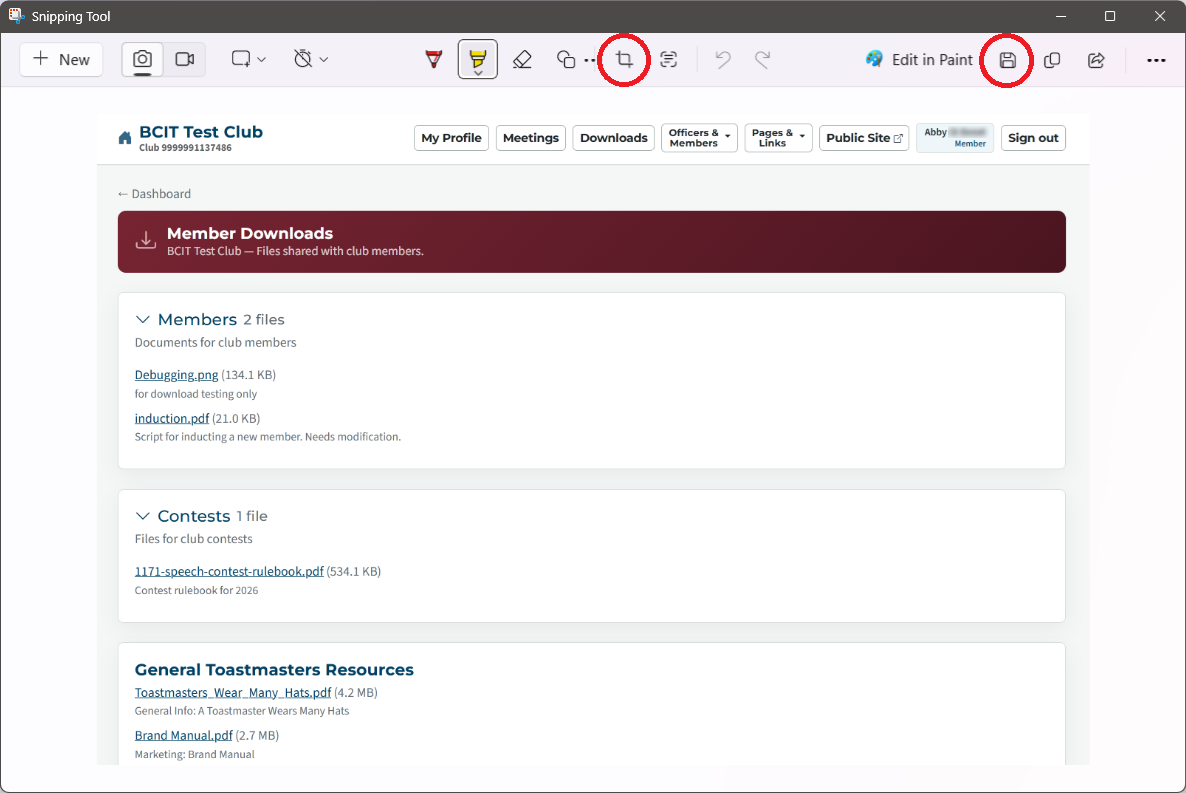
      4. Once you have selected the desired part of the screen, the Snipping Tool program should open with the captured screen image loaded to allow you to annotate and/or crop the image.  In the image below, the crop icon is the left-hand one circled in red.  


      5. Once you have finished modifying the captured image, save it using the save icon (the right-hand one circled in red above).  Save the resulting picture as a .PNG file, with a meaningful name, noting where it is saved to. If you have a difficult time following the folders, save it to your desktop.

      6. Log in to the FTH support forum.

      7. Click on new topic, and enter the subject of your problem or question.

      8. Enter the message, making sure you have also supplied your club number.

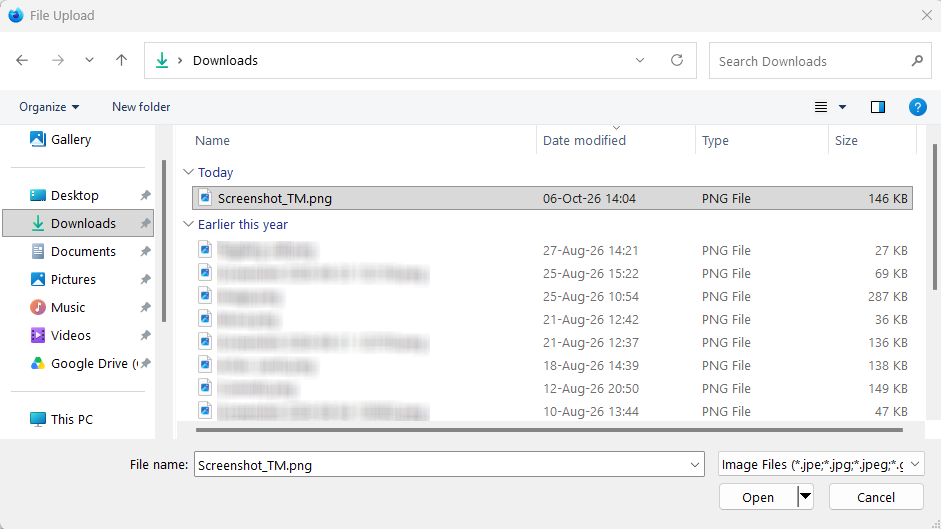
      9. Below the message field is a button named Add Files... Click on the Add Files... button. Navigate to the folder (or desktop) where you saved the picture. Click the file name and then click the Open button.

        Choosing file to upload


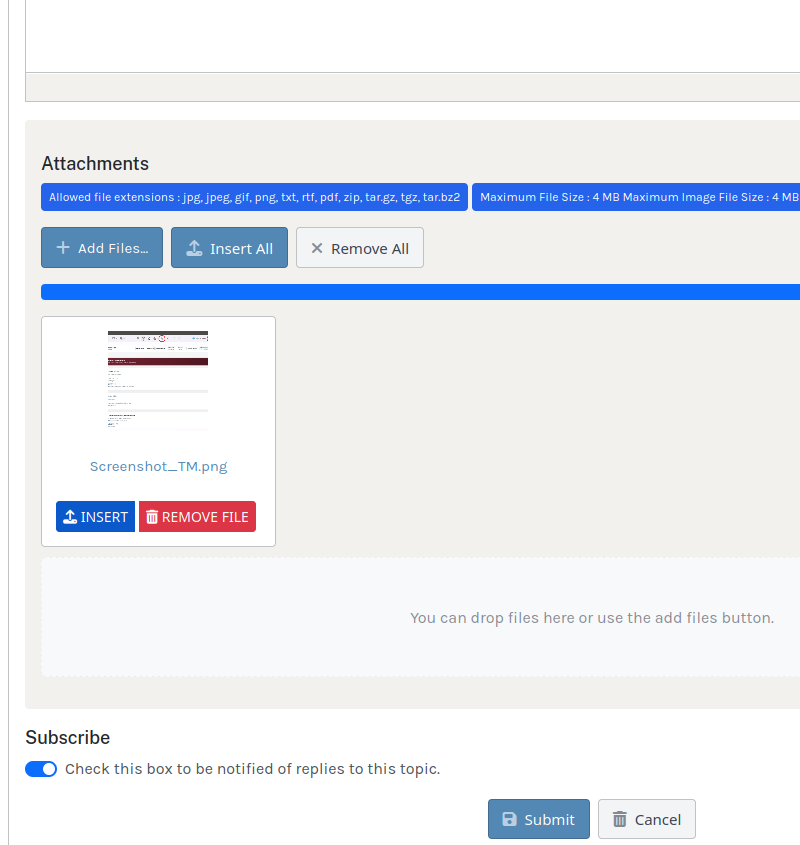
      10. The file name will now be listed in the attachments.

        screenshot added to post

      11. Click the Submit button.


Jane Atkinson
Jane Atkinson

Latest Forum Posts

    • Club 643557 TM agenda template printing
    • In Public Forums / FTH4 Support
    • by Catriona
    • 3 hours 36 minutes ago
    • Animated Tiles Not Working #8761
    • In Public Forums / FTH4 Support
    • by ormondtm@yahoo.com
    • 4 hours 13 minutes ago
    • Remove invalid pathways
    • In Public Forums / FTH4 Support
    • by Pam
    • 5 hours 4 minutes ago
    • Guest list rules
    • In Public Forums / FTH4 Best Practices
    • by RichardT
    • 6 hours 33 minutes ago
    • Google/Bing search engine visibility
    • In Public Forums / FTH4 Support
    • by bond4tms
    • 9 hours 21 minutes ago

Copyright © 2026 FreeToastHost 4 Support. All Rights Reserved.

Site hosting and technical support provided by FreeToastHost, a free service of Toastmasters International.

The information on this website is for the sole use of Toastmasters’ members, for Toastmasters business only. Toastmasters International, the Toastmasters International logo and all other Toastmasters International trademarks and copyrights are the sole property of Toastmasters International and may be used only by permission.