TTS Role
Table Topics Speaker
Click here to jump down to the TTS role usage instructions.
Table Topics is a premier feature of Toastmasters International and FreeToastHost strives to provide tools for clubs to get the most out of meeting participation and historical data retention.
FTH features a pre-defined list of Roles that clubs can use and adjust to suit their meeting agenda needs.
Three of these pre-defined roles concern the Table Topics portion of a meeting; the Topicsmaster and two roles for Table Topics participation.

Why retain Table Topics participation history?
FreeToastHost has two features that benefit by recording each meeting's Table Topics participants.
- Pathways level completion requirements.
- Important to each member's journey through a Pathway.
- Top Toastmasters scorekeeping.
Refer to the Toastmasters Education Programs FAQ for current meeting role requirements.
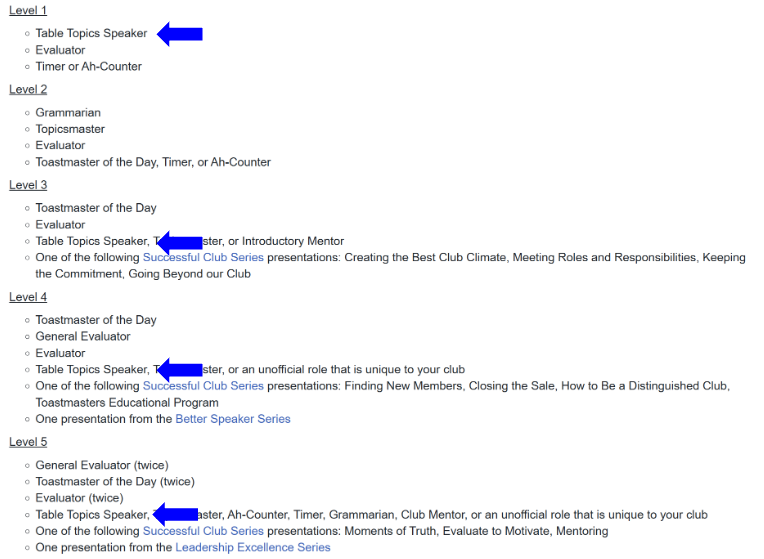
Two strategies for managing Table Topics participation
Each club can decide how to utilize one of the two Role options for including Table Topics participation on their meeting agenda.
Table Topics Speaker
A club whose meeting format is suitable (the same number of participants for each meeting) to offer Table Topics Speaker sign-ups may include multiple instances of the Table Topics Speaker role in their agenda template.
This method also facilitates using the Agenda Forecaster to populate future Table Topics Speaker sign-ups.
TTS
The other option and primary focus of this document is TTS.
This special role provides a unique feature for clubs who have a variable number Table Topics participants at each meeting.
This special role provides a method to record the actual participants after the meeting.
The TTS feature has an added bonus of recording guest participants by name.
Getting started: Configure the TTS role
Open the Agenda Templates console and select the 'Roles' tab.

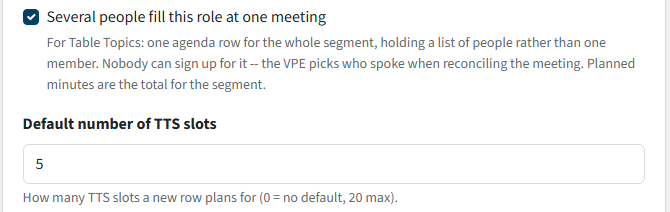
Select the Edit button for TTS and complete the section that is unique to this TTS role.
- Several people fill this role at one meeting. (Don't uncheck this)
- Default number of TTS slots
- Choose a number that seems average for your meetings.
- This setting does not limit the actual number of people that can be recorded as Table Topics participants.
Add the TTS role to your agenda template.
When you create a dated agenda, the agenda view with show the set number of TTS slots.

Listing the Table Topics participants during a meeting
During the meeting a list of attendees who participated in Table Topics must be recorded by the Timer in order to provide their timing report. This can be used by the agenda editor to update the TTS participants after the meeting.
Using the Printed timer sheet; This completed sheet can be given physically or digitally (take a picture, scan it, etc) to the agenda editor to update the TTS role and reconcile the agenda.
Using the Online timer tool; When the Online timer sheet is saved, the list of participants will be available to the agenda editor. (Open the same Online timer tool link in the agenda.)
While using the Online timer tool the Timer may choose to abbreviate names. Ensure abbreviated names are identifiable to any agenda editor responsible for completing the TTS participation list.
Saving the TTS participants for accurate reconciliation
This is how the TTS role appears to an agenda editor.
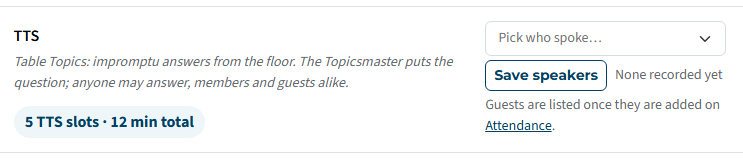
Open the 'Pick who spoke...' drop-down list.
Click each participant name to move it to the box above the list. Non-member participants will have (guest) after their name.
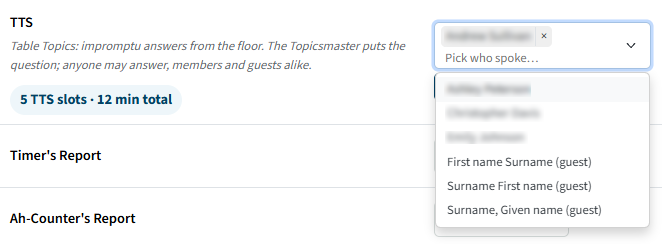
Use the Save speakers button or your selections will be lost!
Clicked the wrong name? Simply select the x to the right of their name to remove them.
Be sure to use the Save speakers button after any changes.
How are guest names appearing on the TTS drop-down?
Toastmasters permits guest participation in Table Topics. FTH provides this method for clubs to record their names which can also aid the VPM's follow-up activities.
Available to an agenda editor at the top of each agenda is an Attendance button.

In the top right corner of the attendance page is a place to record the names of guests who attended the meeting. This list is saved with the dated agenda.
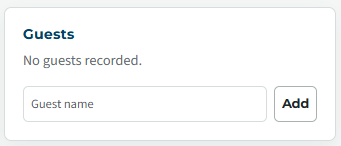
Type in each guests name and click the Add button.
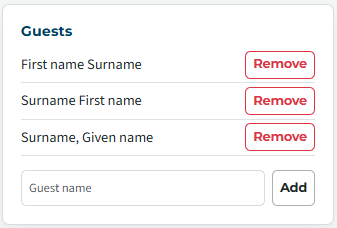
On the Manage Agenda page, the guest names will appear below the club members in the drop-down list.
This guest list is explicitly for Table Topics participation and is available ONLY to the TTS role. No other club site functions can access this guest list. Names in this list cannot be added to the Table Topics Speaker (or any other) sign-up role.
Bonus benefit of the guest list: it provides a bit of additional info to aid the VPM with guest follow-up.
Last updated 6 November 2026