


- Details
- Category: FTH4
-
By Jane Atkinson
- Hits: 324
Uploading and organising files
The FTH server has limited space and isn't intended to be a file archive repository. Uploads are limited to 5 MB and no program or script files, audio files or videos are permitted.
If you want to store videos or larger files, use One Drive, Google Drive or other storage facility.
File uploads
Click on the Upload File button for the relevant folder.
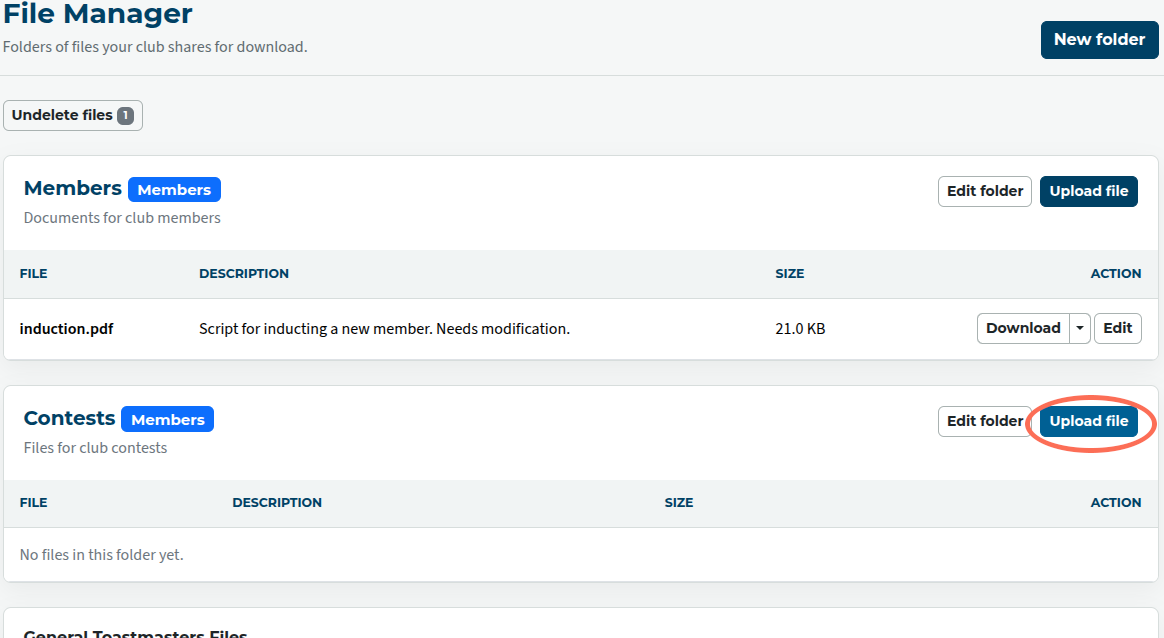
Select the file from your local computer.
Add a description if desired.
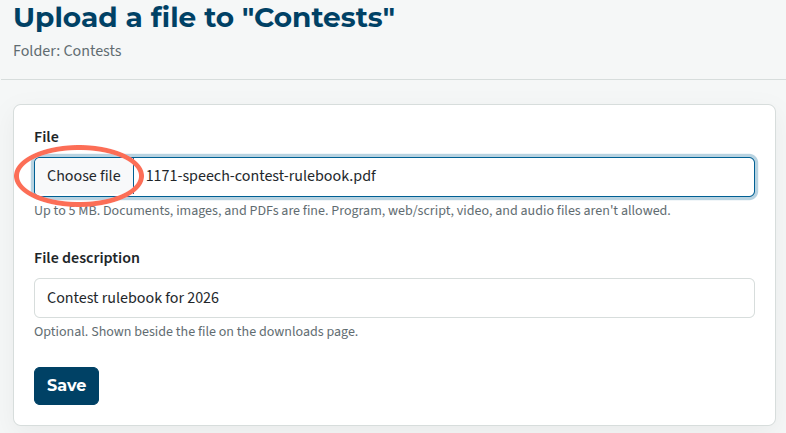
Save.
Making files available for download in webpages
Sometimes, you want files to be available for download directly from a webpage. You can insert a link from the Download button in the file manager.

There are two versions of the link.
"Download link" is for downloading a file for use later, or in another program.
Use "View (inline) link" if you want the file to be viewed or read directly in the browser. This can be especially useful with .pdf files.
Copy the link from the dialogue, and paste it into the web page editor.
Organising files
If you have a number of files, and especially if you don't want all of them available to the public, you can create separate file areas.
Choose New Folder.
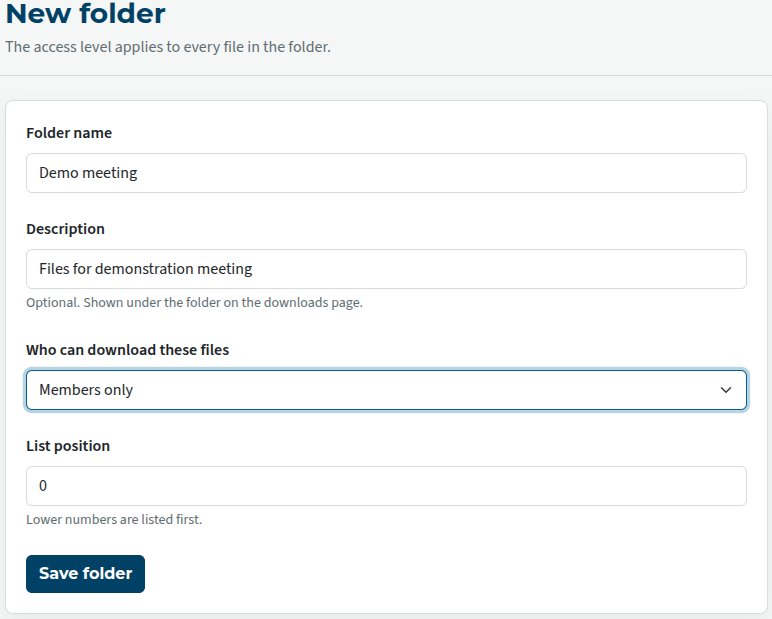
Give it a name, and a description if you think that would be helpful.
Select who can download it: members only, officers only, the public, or unlisted.
List Position determines where it appears in the menu. If you aren't sure, you can leave it for now and change it later.
You can upload directly to a folder by using its Upload button. If you want to move a file to another folder, edit the file and change the folder using the drop-down setting.
Save.
Any of these details can be changed later.
Unlisted means "reachable only via direct link"; that is, you need to know the address of the file. It doesn't mean "private". It pays to assume that a bot or script, or inquisitive person, will find it sooner or later.
Expand / Collapse in the admin view
This is controlled by the two buttons (underlined in the first image) at the top of the File manager. These control only the admin view, not what the members and public see.
Expand / Collapse on site
This setting can be changed at any time, and without needing to change any of the other settings.
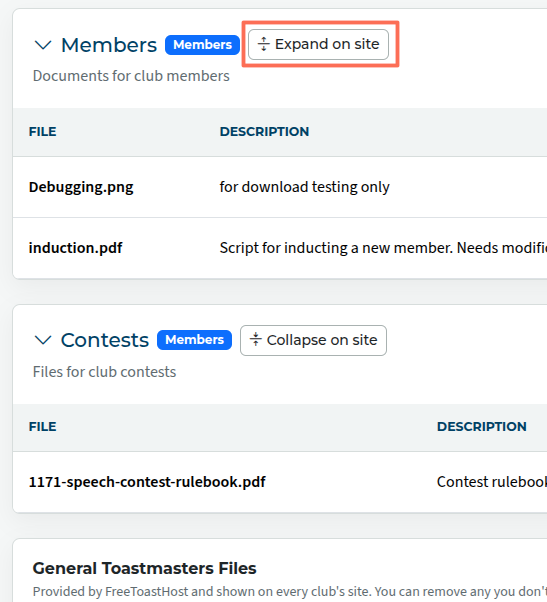
Click on the button (in the red box) to hide or reveal the list of files in the Downloads area.
See Downloading files for the result.
In this case, where there are only two files, it doesn't make much difference. If there are a lot of files in a folder, it may be more convenient to set it to Collapse on site, so that users don't need to scroll through them to get to the next folder.
Editing files
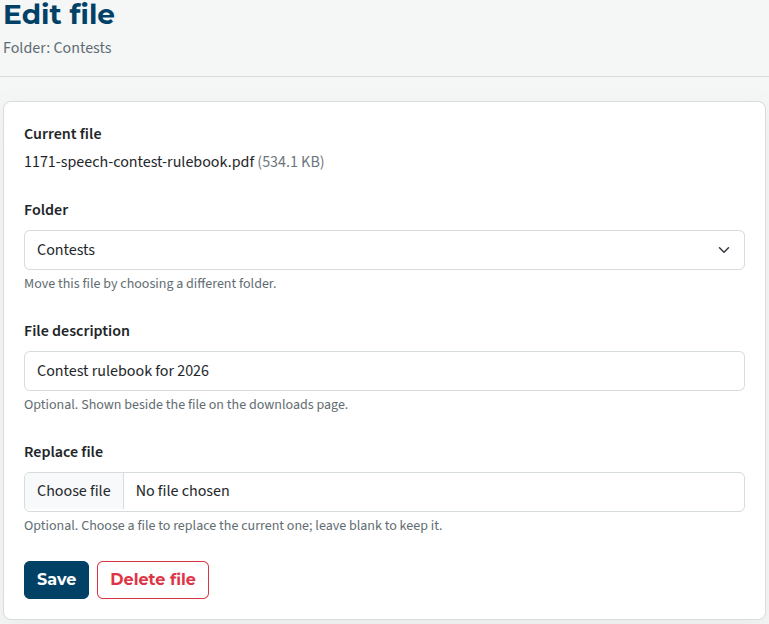
This allows you to change file details, move files to other folders, replace them (e.g. update the contest rulebook with the latest version), or delete.
Click on the Edit button to the right of the file details.
Make changes as necessary, and save.
Deleting files
In the Edit file area, click on the (red) Delete file button.
There is no "are you sure?" message, but files can be restored.
There is an undelete button at the top left of the file manager. The number indicates the number of files that can be restored.
Files can be undeleted for 30 days. After that, they are gone completely.

Latest Forum Posts
-
- header in an Agenda
- In Public Forums / FTH4 Support
- 1 minute ago
-
- Live timer sheet
- In Public Forums / FTH4 Support
- 14 minutes ago
-
- FTH Emails Not Going Through
- In Public Forums / FTH4 Support
- 17 minutes ago
-
- Not able to open club web site
- In Public Forums / FTH4 Support
- 23 minutes ago
-
- Members's input attending is not saved in Attendan...
- In Public Forums / FTH4 Support
- 26 minutes ago