


- Details
- Category: Documentation
-
 By FreeToastHost
Terms of Use Agreement, Revised 10/04/2022.
Use of FreeToastHost websites
FreeToastHost is a free website provider, content management system, and email list server for the exclusive use of Toastmasters clubs and districts in good standing. Use of this system is strictly for purposes of Toastmasters related activities and business. Any use of this system for personal activities or non-Toastmasters activities will be considered a violation of this agreement and the offending website may be removed from the system. While we certainly want to make the system work well for the majority of its users, some basic terms of use are necessary to ensure that the system continues to function as intended and is readily available in the future. By continuing to use the FreeToastHost website system, you are agreeing to abide by these Terms of Use.
The following are specific examples of inappropriate use of the FreeToastHost system:
- Use of user scripts. We reserve the right to delete any content containing user supplied scripts that interferes with the proper functioning of the FreeToastHost system or that alters it, without our consent. If you elect to use your own or third-party scripts, you do so at your own risk, and we are under no obligation to support them.
- Using FreeToastHost email functions for sending spam. We reserve the right to remove any person, club, or district from the system that we discover is using the FreeToastHost email functions for sending out spam or other unwanted emails. Removal of, defeating, or circumventing the unsubscribe features for emails to non-member distribution lists shall be construed as an intent to send spam. This specifically includes any unwanted emails that cause the good reputation of the FreeToastHost website system to be adversely impacted.
- Using the FreeToastHost email functions to send out emails relating to non-Toastmasters activities. These include, but are not limited to, fundraising for non-Toastmasters-approved activities, and canvassing support for personal or other non-club activities. Use of the system in such a manner is in contravention of Toastmasters International policies, as noted below. We reserve the right to remove any person, club, or district from the system that we discover is using the FreeToastHost email functions in such a manner.
- Interfering with Toastmasters branding support or altering template styles. We reserve the right to delete any content which interferes with the system's support of proper Toastmasters branding or alters our template styles.
Ownership of data and content. While you are certainly the owner of your content and information entered into the FreeToastHost website system, we are the owner of the database in which it resides, the system HTML template, and all scripts and program code used to operate the system. If we find that our scripts or our provided default content (with the exception of user-editable content) are being adversely infringed upon or altered without our consent, we reserve the right to take appropriate action, up to and including removal from the system.
In accordance with Toastmasters International Policies and Protocols, the use of FreeToastHost and its functions is limited to Toastmasters activities and promotions. The club president and the district director are responsible for all content on the club and district sites respectively. Use of the membership and email lists is restricted to Toastmasters information and shall not be used for solicitation or any other use.
Any misuse or violation of Toastmasters International Policies and Protocols pertaining to use of the website may result in removal of offensive material and suspension of the offending website and a ban from posting comments on the FreeToastHost support forums.
Use of the FreeToastHost support forums
The FreeToastHost support forum is for the sole purpose of providing help and support for users of FreeToastHost club and District websites. Any other type of solicitation is expressly prohibited.
We ask you to be respectful at all times, both to other users and to Ambassadors. The Ambassadors are all volunteers and, depending on when you post your query, may not be available at that time. In addition, not all Ambassadors are able to answer every question. Much of the time, your query will be addressed within about 24 hours, though it does depend on the availability of the support volunteers.
We may refer you to our online documentation if the answer to your inquiry is best explained there--we try our best to keep it updated and as useful as possible. We may also refer you to another forum topic thread or ask you to search the forum topics if we believe that your inquiry has already been addressed. If we do these things, it does not mean that we are trying to ignore you or are unwilling to support you. In many cases, it is just more effective and efficient to refer inquiries to documented features or already explained solutions rather than to repetitively try to explain the same solution over and over again, which has the net effect of making us less available for new unresolved issues.
You may be asked to carry out certain instructions and post the results to the forum, so that we can figure out exactly what is going wrong. This may seem like extra work, but it is needed so that we can be sure we're addressing the real cause of an issue. If that isn't something you wish to do, then we reserve the right to lock the thread and not provide further support with that particular issue.
You don’t have to like everything about FreeToastHost. You don’t have to like it at all. But please express your opinions respectfully. Personal attacks, threats or derogatory statements about Ambassadors, admins or other users are not acceptable.
A single less-than-ideal post is unlikely to cause major problems. However, persistent posting in an unacceptable manner will result in being put on moderation or an outright ban from posting.
In addition, the following are not allowed on these forums and are likely to result in an immediate ban:
- Offensive language, “adult” content, spam
- Politics, religion or other contentious topics. There are plenty of other places where you can discuss these.
- Overt advertising for other services or businesses. A discreet mention or link in your signature may be OK.
- Instructions for circumventing Terms of Service, EULAs etc.
- Details
- Category: Documentation
-
By SteveTheTechie
Name tags promote familiarity between members and provide a mechanism for visibly recognizing member accomplishments and officer roles.
Tips for creating name tags with less stress and less cost, using FreeToastHost
- Only print name tags on plain paper and cut them out.
Most name tag "kits" that you can purchase at an office supply store will come with name tag holders and perforated card stock to print the name tags on. I strongly recommend that you do not print on the card stock, but just insert the blank card stock name tags in the card holders behind the paper name tags you print to "stiffen up" the name tags.
The reason for this is that most clubs will have members who will progress through the programs and get educational/leadership awards. Also, members may become officers. Both educational awards and officer roles are beneficial to put on name tags. This means that name tags would need to be reprinted occasionally. If you print on the perforated cardstock instead of plain paper, you will soon find yourself having to replace the card stock by buying more name tag kits.
If instead you print on plain paper, you can just recycle the name tag holders. You will not need to spend a lot of extra money on new name tag kits due to printing mistakes, or changes in member awards or officer status. If you want to make straight paper cuts, you can get a rotary trimmer, but scissors should also work fine.
- Always ask for members to return their name tags at the end of each meeting.
Many members will just assume that their name tags are theirs to keep. As a result, the name tags will tend to get lost, and you will likely find yourself reprinting name tags frequently. Therefore, you should always treat the name tags as club property (meeting supplies) and ask for them to be returned at the end of each meeting.
It may take a bit of "training" to get members used to turning in their name tags at the end of each meeting, but over time they will begin to appreciate the value of this approach since they will not need to remember to bring their name tag to the meeting.
In my club, we just keep the name tags in a clear plastic zipper bag with our meeting supplies that is labeled NAMETAGS with a permanent marker (so the bag is not discarded). Moreover, if you use this approach, it's easy to reprint name tags with updated member accomplishments and officer roles, since you will already have the name tags with the meeting supplies instead of having to request them back from members to update them.
- To make it easy for members to find their name tag when they arrive at a meeting, you can just print extra sorted pages of name tags to use as a sorting guide.
Name tags are printed sorted by name order, except that officers are placed at the beginning. If you take advantage of this fact, then you can print a second set of pages containing name tags that you do not cut out—just use these full pages at the meeting as a guide and lay the finished name tags over top of their corresponding duplicates in the full pages. You will find that this makes quick work of sorting name tags at meetings.
How to use the Make Name Tags tool in Membership Management:
- The Make Name Tags tool is designed to make it easy to create and print member name tags with a minimum of effort. The tool provides a number of pre-made templates in various name tag sizes for your use as a starting point in creating your own club name tags. In many cases, the provided templates will be sufficient, but you should feel free to experiment.
Your name tag layout is saved in our database every time you print. You can also save it without printing. In addition, the various settings provided for by the tool are saved on your computer to allow for variations between browsers and printers.
- To make name tags using the tool, first select the members you wish to create name tags for by checking the checkboxes for each member at the far left of their row in the member table.
- Next, from the Membership Tools drop-down menu, select Make Name Tags.
- If you have already created a name tag layout, then skip to step 8 below.
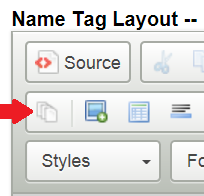
- Click the Templates icon from the dialog that appears (refer to the icon to the right of the red arrow below):
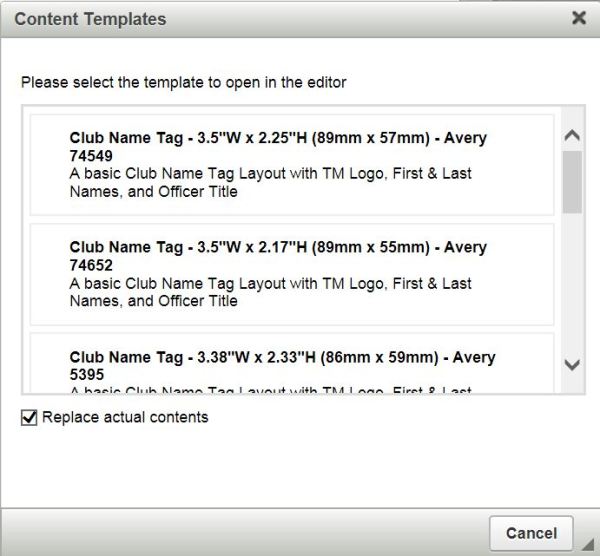
- After you click the Templates icon, you should see the following dialog appear. You can select an available template corresponding to the desired name tag dimensions. This should match the name tag kit and holders that your club decided to purchase. Note that more templates may be added in the future, depending on users' needs. (If you would like to see a new template added, let us know.):
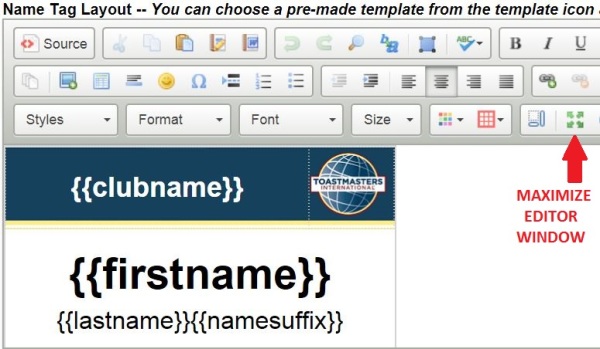
- Once you select the desired template, then you should see the template loaded in the layout editor. This layout and any edits you make to it are saved to the database on the server for retrieval each time you print name tags. Note that you can change the size of the editor window with the green 4-headed arrow icon, as indicated below.
- You can alter the layout by changing fonts, font sizes, background images, and by selecting which of the following variables you wish to show on your name tags:
{{name}} (name as entered), {{firstname}}, {{lastname}}, {{firstnamecaps}}, {{lastnamecaps}}, {{namesuffix}}, {{datejoined}}, {{membersince}}(adds "Member Since" to Date Joined), {{officerrole}}, {{emeritus}} (uses "Officer Emeritus" for Other Officer), {{clubname}}, {{clubnumber}}, {{caward}} (communication award Level), and {{laward}} (leadership award level). (More may be added in the future.)
Refer to Adding Members for how to handle multi-part first names and surnames.
Note: The elements of the layout are set to correspond to the dimensions of the name tag template that you selected. If you change any elements of the layout that cause the overall layout dimensions to be changed, the name tags may not print properly. The default name tag templates have been designed to try to force the dimensions to be fixed for proper printing, but they still can be changed with enough effort. Be careful not to change the overall dimensions of the name tag layout, or you may have to clear your layout and start over from the template. Do some sample print outs as you make changes to ensure that the name tags will print as intended. - If you look above the layout editor, you should see the following printed page settings. These settings are used to create the table that holds multiple name tags for printing, and to properly place it on the printed page. For example, since A4 pages are longer than letter size pages, name tags printed on A4 pages will have larger top and bottom margins than if they were printed on letter size pages.

- Here is a summary of these settings, and how to use them:
a. Page Size – Select the printed page size corresponding to the paper or media that you intend to print the name tags on. While we strongly recommend that you print on plain paper, with enough experimentation you may be able to achieve satisfactory results on perforated name tag cardstock or other media.
b. Left Margin Adjustment – If you need to shift the table containing the name tags horizontally on the printed page, you can do that with the Left Margin Adjustment. Negative values are permitted, and you can enter the adjustment value in inches, centimeters, or millimeters. Typically you would use this setting to adjust for printer variations or to shift the table containing the name tags when printing on perforated name tag cardstock or other similar media. (Printing on cardstock is not recommended.)
c. Top Margin Adjustment – If you need to shift the table containing the name tags vertically on the printed page, you can do that with the Top Margin Adjustment. Negative values are permitted, and you can enter the adjustment value in inches, centimeters, or millimeters. Typically you would use this setting to adjust for printer variations, or to shift the table containing the name tags when printing on perforated name tag cardstock or other similar media. (Printing on cardstock is not recommended.)
d. Select Equivalent Type/Dimensions – Select the name tag dimensions from the drop down. This is used to create the cell dimensions for the table containing the name tags on the printed page. This selection should match the name tag layout dimensions you are using.
e. Print Borders – Borders can be printed around each name tag to aid in properly cutting them out for use. Generally, you should leave this check box ticked unless you are printing on perforated name tag cardstock. (Printing on cardstock is not recommended.)
- Once you have created your layout and entered the desired settings, then click the Save button. The name tag layout is saved in the database on the server, and the other settings are saved on your computer in your browser's local storage area.
- Proofing and Printing. Once you have created your layout, you should print some proof pages to check that the name tags are printing as intended. Here are some tips to ensure that the name tags will print properly.
a. Make sure that printing background images is enabled. The logo image that is included in the templates is a background image. Different browsers require different approaches to enable printing background images. However, frequently this setting is enabled in the browser's print preview screen (applies to Internet Explorer and Chrome). To get to the browser's print preview screen, you must cancel the print dialog that shows once you click the Print button of the Make Name Tags dialog and use your browser's print preview to enable printing background images.
b. Be careful making margin adjustments in the print preview screen. Our printed page table has been set up to try to force printed page margins to be correct for proper printing. If you make margin adjustments, avoid making any changes that will change the overall width and height of the table containing the name tags for printing.
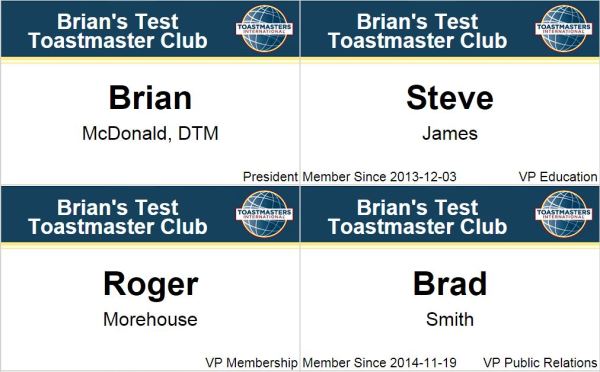
Please let us know how this new feature is working for you. We rely on your feedback to let us know where we can make improvements.
- Details
- Category: Documentation
-
By Jane Atkinson
In order to see the "Meet our Members" page, at least one member profile needs to be made public.
This can be done in two different ways.
1. The member makes their own profile public.
2. The admin accesses the profile of the member in question (from the membership management area) and makes the profile public.
See http://support.toastmastersclubs.org/doc/item/member-profile
Very Important
Check with the members before making profiles public, and respect their desire for privacy. They may have very good reasons for wanting to keep their details private.
More Articles …
Page 13 of 29
Latest Forum Posts
-
- Club 1104 - who do I ask to fix the inaccurate rec...
- In Public Forums / FTH4 Support
- 48 minutes ago
-
- Modify or hide small club name between "Banne...
- In Public Forums / FTH4 Support
- 1 hour 56 minutes ago
-
- Club No. 1250 - Need to Edit our Club's Website
- In Public Forums / FTH4 Support
- 2 hours 30 minutes ago
-
- Club #6494 - Cedarbrae
- In Public Forums / FTH4 Support
- 2 hours 32 minutes ago
-
- The Admin-Entered Attendance (absent or excused) n...
- In Public Forums / FTH4 Support
- 4 hours 38 minutes ago