


- Details
- Category: Documentation
-
 By Jane Atkinson
Most browsers cache or store copies of webpages so that they don't need to be downloaded every time you visit a site.
Sometimes, this means that you can't see changes that you've just made. At other times, it may be part of the reason you are having problems getting website features to work. Then you need to clear your Cache / Temporary Internet files.
On FreeToastHost sites, simply click on the link at the very bottom of the page, underneath the small type, "Click here to reload website from server." (shown in yellow type below).

When you can't access the link
If you can't access the link mentioned above, you need some other way to clear the browser cache. In this case the best approach may be to clear the cache directly in your browser settings.
We encourage all users to be familiar with the data stored by your browser and the tools available to manage this data.
The authors of the respective browsers are the best source of usage information. Rather than attempt to keep up with an ever-changing landscape of browser updates, the following list contains links to various browser help pages for clearing data stored by the browser.
Chrome
Clear browsing data
Google Chrome Help
Edge
View and delete browser history in Microsoft Edge
Microsoft Edge help & learning
Firefox
How to clear the Firefox cache
Firefox Support
Safari
Clear your browsing history in Safari on Mac
Safari Support
Opera
How to clean your browser and remove trackers
Help & FAQ for Opera browsers
Vivaldi
Delete browsing data
Vivaldi Help
General notes for this topic.
See also http://en.wikipedia.org/wiki/Wikipedia:Bypass_your_cache
FTH no longer supports Internet Explorer.
We recommend choosing a browser from the list above.
While working on your site if an update or display of an element (such as pictures) doesn't behave as expected; before taking any other action, please try (Click here to reload website from server.) as described at the top of this page or clear your browser cache.
Please note the following concerning the use of pictures in your rich text editor:
- If you upload a new version of a picture with the same file name of a picture already in 'Your Image Library' your page may continue to display the old version of the picture.
- This is because your browser cache still contains a picture of the same file name.
- You must either;
- Change the file name of the newer version of your picture
- Delete the old picture, close the editor (and possibly clear your browser cache) then upload the new version of the picture.
In some cases the information for clearing cache on other platforms or operating system versions is readily accessible on the pages linked above. Some examples are shown below.
Chrome


Firefox


Safari


- Details
- Category: Documentation
-
By RogerM
1. Navigate to www.toastmasters.org
2. In the top bar, click on the Login link

3. Enter your Toastmasters International Username and Password (These may not be the same as you use for FTH.)

4. Click on the Leadership Central tab.

5. A drop down list will be displayed. Click on Club Central.

6. The club(s) you have access to will be displayed. Click on the club link.

7. The Club Business page will be displayed. Click on View/Update/Print my club membership roster.

8. Click on the Export to CSV button

9. Depending on your browser and default download settings, a link to the newly exported file may be shown in lower left corner of your screen. Double-click that link.

The csv file will open similar to this file.

10. Highlight columns A, C, D, E, F, G, H, I, L, M, N, O, P, Q Right-Click and click on Hide.

11. You may have to resize the columns to see the data. You will need to cleanup the phone numbers by removing all spaces. You can use Find and Replace (Ctrl + H) or do it manually.

12. This is what you want. Highlight just the information you want to copy, and either press Ctrl + C or right-click and choose Copy

Note: If you’re using a program other than MS Office (e.g. LibreOffice), you may find that the hidden columns get copied as well.
In that case, delete the unwanted columns and save the document with another name before copying.
13. In FTH, log in as the administrator, click on Launch Admin Console, then membership Management, and click on the Quick Add tab. Click in the white space, press Ctrl + V, then choose the list to Add the following people as: Members and then click the Save button.

14. Click on the tab of the group you added the members to.

Notice that the member with no email was assigned a placeholder email by FTH.
- Details
- Category: Documentation
-
By Jane Atkinson
To include a link to an uploaded file in a webpage:
Go to the File Manager module in the admin console. (It is one of the items in the pull-down menu at the top of the admin console.)
Click on the file-type icon to the left of the File Description. The following dialogue box will appear.
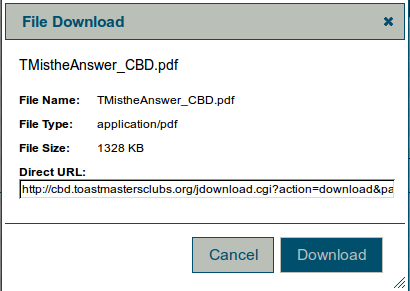
Copy everything from the box labelled Direct URL.
Click on Cancel.
You can now use the link in your page.
Take care not to use a link to a members-only file in a public page. If you want a file to be downloadable by guests, make sure that it's set to Public in the File Manager.
If you want a file to display directly in the browser, change the part that says "action=download" to "action=inline". This is particularly useful for pdf files.
More Articles …
Page 23 of 29
Latest Forum Posts
-
- Club 1104 - who do I ask to fix the inaccurate rec...
- In Public Forums / FTH4 Support
- 47 minutes ago
-
- Modify or hide small club name between "Banne...
- In Public Forums / FTH4 Support
- 1 hour 56 minutes ago
-
- Club No. 1250 - Need to Edit our Club's Website
- In Public Forums / FTH4 Support
- 2 hours 29 minutes ago
-
- Club #6494 - Cedarbrae
- In Public Forums / FTH4 Support
- 2 hours 31 minutes ago
-
- The Admin-Entered Attendance (absent or excused) n...
- In Public Forums / FTH4 Support
- 4 hours 37 minutes ago