


- Details
- Category: Documentation
-
 By Jane Atkinson
Browser cookies and FreeToastHost
What are cookies?
Cookies are small bits of text, sent by a website to your browser, for storing on your computer. They contain a website address, an expiry date, and a line of what often looks like garbage.
Why do we use them?
FreeToastHost uses cookies to tell whether or not you are logged in. Every time you view a page, it will check to see if the cookie it sent earlier "says" you are logged in. If it doesn't, you see only what the general public can see.
Your browser can be setup to refuse to store cookies. When this happens, the website has no way of knowing whether or not you're logged in. Therefore, it's going to be unhappy about letting you do anything that logged-in people can do, such as view agendas and make changes.
So, if you want to do these things, you need to allow your browser to accept cookies from toastmastersclubs.org.
Signs that your cookie settings may need changing:
- You can't login.
- You can't stay logged in.
- You can't save changes.
If these things are happening, you may need to change your cookie settings to "allow cookies", or to "allow cookies from toastmastersclubs.org" if you prefer that.
The exact details of how to do this vary, depending on which browser you are using.
Changing cookie settings
For Firefox, Internet Explorer, Netscape Navigator, Opera, Safari, Chrome (PC), Chrome (OSX), iDevices:
http://www.wikihow.com/Enable-Cookies-in-Your-Internet-Web-Browser
For Microsoft Edge:
For iPad:
https://www.lifewire.com/enable-cookies-on-ipad-5224808
For mobile browsers:
Private browsing
Do not use private browsing.
Private browsing causes problems with iPad Safari and most other browsers, such as being unable to open the admin console.
If you've changed cookie settings and things still aren't working properly, make sure that private browsing is turned off.
- Details
- Category: Documentation
-
By Jane Atkinson
What do all the Agenda Icons/Buttons mean?
There are seven buttons in the agenda toolbar, though not all of them may be visible. What you see depends on your access privileges.
From left to right they are:
- Email the agenda.
- Print the agenda.
- Print role reports. Any member can print his/her own; members with special access can print these for any member.
- Sign-up sheet for future meetings.
- Delete the agenda (not recommended).
- Edit the agenda.
- Create a new agenda.
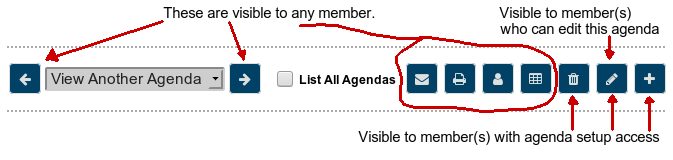
The first four are visible to any member.
If you're given access to edit the agenda, you'll see the pencil icon. This access is usually given to the Toastmaster but other members may also have it. Check with your website admin if you're not sure.
The member(s) with access to creating and deleting agendas will see the icons for carrying out these two functions.
Please remember that your agendas contain your site's role history; therefore, don't delete agendas unless there are really good reasons for it, such as creating one in error or starting with the wrong template.
- Details
- Category: Documentation
-
By Jane Atkinson
How to delete an agenda

Past agendas are used to create the role history and if you delete old agendas, the role history is affected. Therefore, deleting agendas is not recommended.
Any agendas older than 45 days disappear automatically from the "View Another Agenda" drop-down list (unless you click on the "Show All Agendas" button). Deletion isn't needed to keep the list to a manageable length.
However, occasionally you might be experimenting with agendas for bug-fixing purposes or for testing a new layout. Then you may wish to clean up afterwards so that there are no stray agendas in the system.
To remove the unwanted agendas
While logged in as Admin
- Click on the entry in the calendar. This will take you to the agenda in question.
- Click on the trash can icon.

- Type the word DELETE in the box in the popup, then click on the "Delete" button.
To restore an agenda:
You can restore an agenda if it's been deleted in the last 30 days (but not before 2018-04-15).
- Click on the trash can icon.
- Click on the Undelete Agenda tab.

- Choose the agenda from the pull-down list.
- Click on the Undelete button.
More Articles …
Page 20 of 29
Latest Forum Posts
-
- Club 1104 - who do I ask to fix the inaccurate rec...
- In Public Forums / FTH4 Support
- 47 minutes ago
-
- Modify or hide small club name between "Banne...
- In Public Forums / FTH4 Support
- 1 hour 56 minutes ago
-
- Club No. 1250 - Need to Edit our Club's Website
- In Public Forums / FTH4 Support
- 2 hours 29 minutes ago
-
- Club #6494 - Cedarbrae
- In Public Forums / FTH4 Support
- 2 hours 31 minutes ago
-
- The Admin-Entered Attendance (absent or excused) n...
- In Public Forums / FTH4 Support
- 4 hours 37 minutes ago