Utilizing payment links in your FTH site
Treasurers can add payment links to invoices as explained in the 'Dues Management' document.
Club Admin (and officers with custom web page access) can add payment links on member and public site pages.
Instructions for obtaining payment links from all potential global providers that Toastmasters clubs may use is beyond the scope of FreeToastHost and therefore not explained in detail here.
FreeToastHost support is unable to help with any specific issues related to obtaining a payment link. You must contact your payment service provider for help with this.
As a point of reference, the following steps provide an overview of obtaining the PayPal payment link. Other payment services should have a comparable process to obtain a payment link for your club.
The process as provided by PayPal
In your club PayPal account, select Payment Links & Buttons

Select 'Payment Link & QR code'.

Set the 'Name and Description' and the Price.
Ensure the information you enter here represents your club and intentions! These items define what someone will see when they click your payment link in an invoice email or on a page in your site.
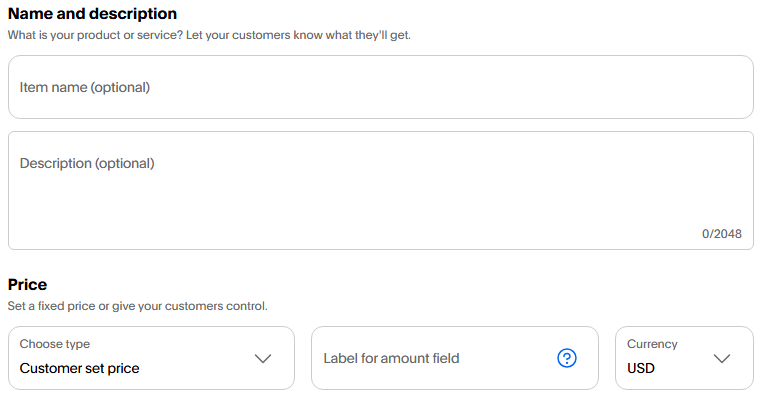
Price: The image above is set to 'Customer set price'. This means the person clicking the link must enter the value they will pay.
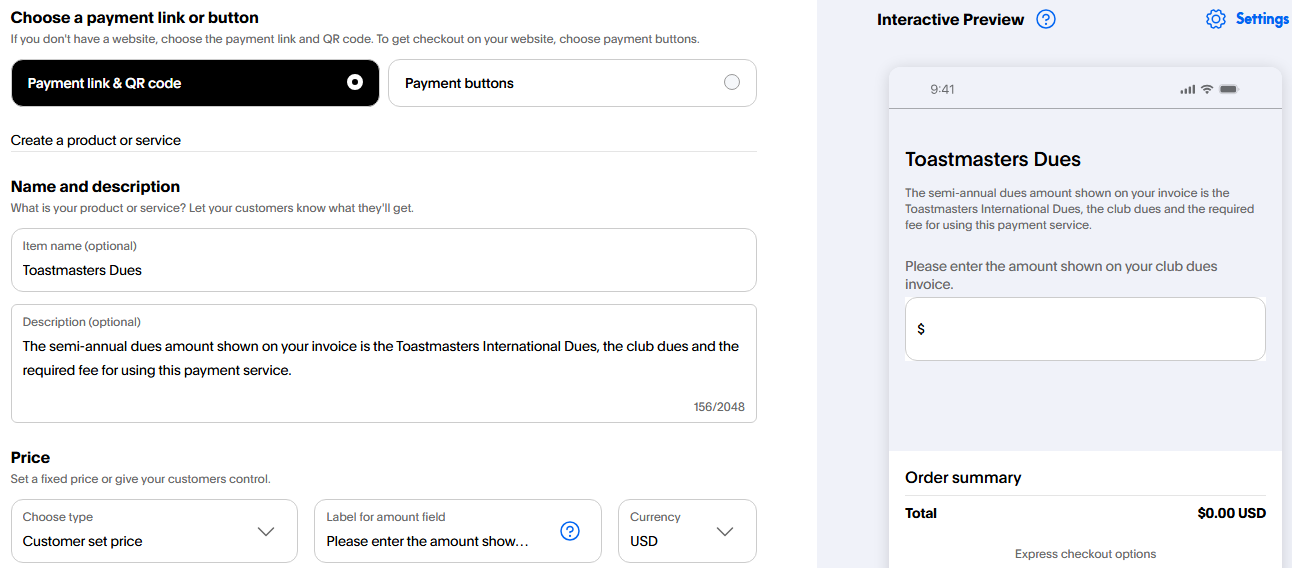
For example: you can describe this value on your club invoice. (e.g. Toastmasters dues + club dues + payment service fee) and instruct the member to 'enter the amount shown on the club invoice'. This type of instruction is added to the right of the price 'Choose type'; 'Label for amount field'
The other Price 'Choose type' option is 'One Set Price'.
Which of the price 'Choose type' options you use and how you use it is determined by your club.
PayPal provides an Interactive Preview on the right side of the payment configuration screen.
This shows you what the person clicking your payment link (in your invoice email or club site page) will see.
Adjust your payment settings and wording until you are happy with the preview.
A word of caution: if you use 'One Set Price' so club members do not have to enter the price themselves, be careful about using this for new members. The prorated dues schedule can get messy requiring numerous payment links in order to provide a payment link for each prorated amount.
When you are satisfied with your settings and preview, select 'Build it' in the top right corner, after which the following screen will appear.
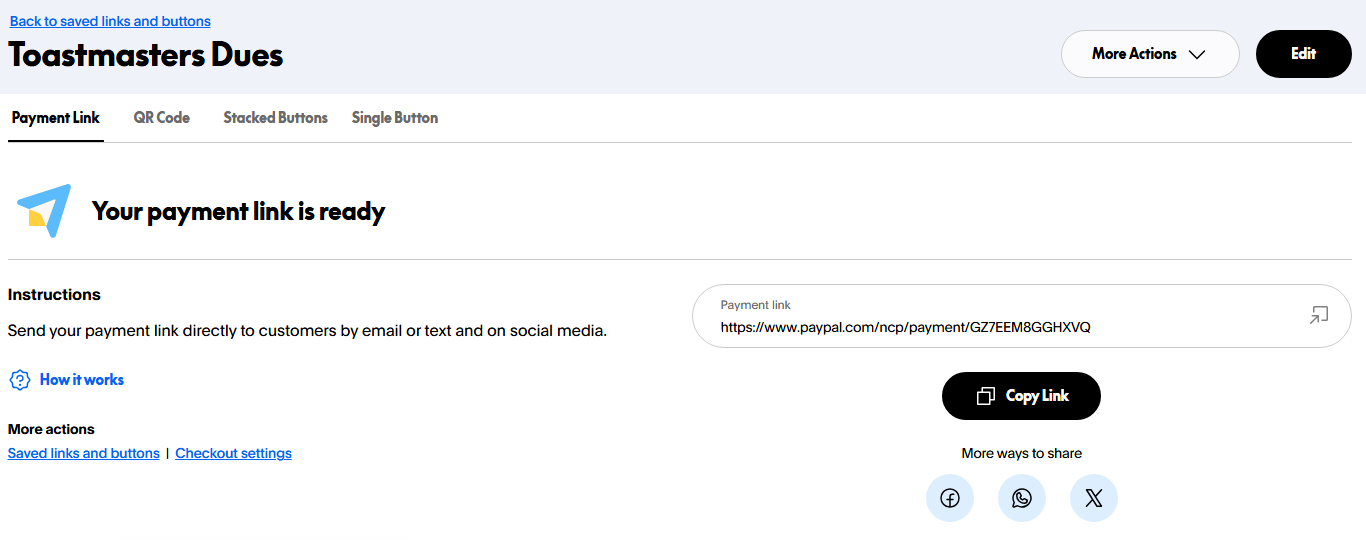
Above Your payment link is ready are four options.
'Stacked buttons' cannot be used by FTH. This requires server access that is not available to clubs.
Using the payment link in your club site
Copy the Payment link to use in your dues invoice.
- This link also applies to the instruction below 'Using an image for your payment link'.
The QR Code can be downloaded and used in various capacities in your club site, social media and communications.
- The QR code can provide a convenient way for club members to pay with their mobile device.
Paypal button in web page
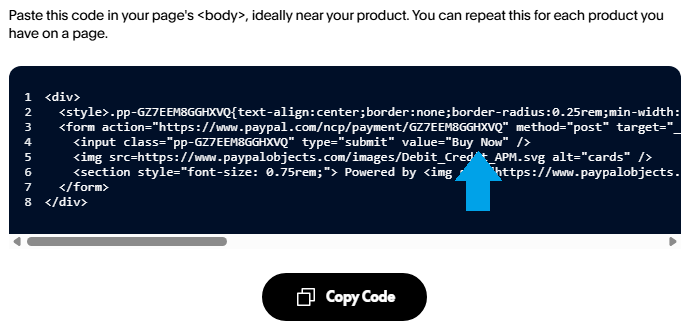
Select 'Single Button' in the link options provided by PayPal. This code can be copied and used in custom pages on your club site.
Important: you must paste this 'single button' code into the source code view of your page.
- Click the 'Change Mode' button. It looks like this in the Jodit editor: </>
The default button name provided by PayPal is 'Buy Now'. When you paste the code into your site this can be changed to something suitable for your club. Replace "Buy Now" in the input class line.
If you are not comfortable working in the source view of your custom page, the following method of creating a button image can be completed in the graphical page editor;
Using an image for your payment link
- Copy the Payment link as shown on the 'Your payment link is ready' page.
- This is the same address you would use for the invoice settings.
- Obtain (download to your device) a payment service image. (e.g. PayPal & Venmo images can be found here: https://newsroom.paypal-corp.com/media-resources)
- Edit your custom page and upload the image to your site's image library.
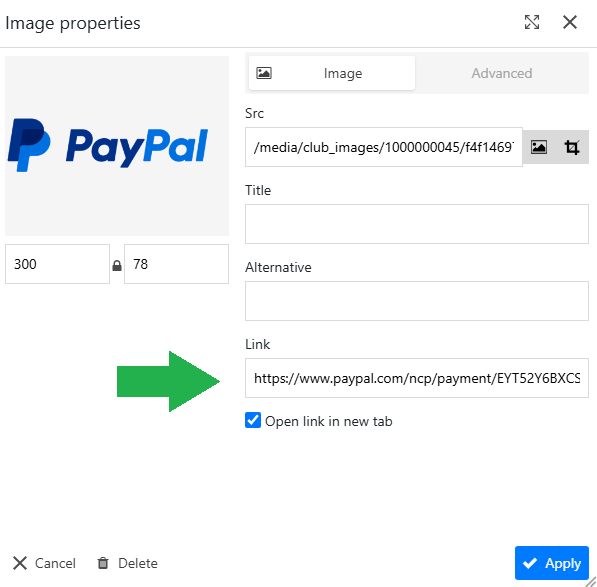
- Add the image to your custom page and add the payment link to it.
- Select 'Open link in new tab'.




Email considerations for external services used by clubs
Add the email domain of your payment provider(s) (e.g. @paypal.com) to your club's email white list. This will ensure that you receive any notification emails sent from Paypal to club email addresses, since many clubs in the system tend to block these emails.
FreeToastHost support recommends using the club's archive email address for external service accounts to avoid issues related to processing incoming email through the FTH forwarding system. See the section titled "Club archive email address + login info" in the "Website email settings" help document.