


- Details
- Category: Documentation
-
 By Jane Atkinson
Email addresses that can be used for emailing club members and officers.
You can't send FROM these addresses, so use something else if you may need to send from an email address to prove who you are. Some social media sites require you to do this.
Club Email Lists available with FreeToastHost
To see the email lists and aliases available for your club, click on "Club E-mail Addresses" in the Members only menu once you are logged in.
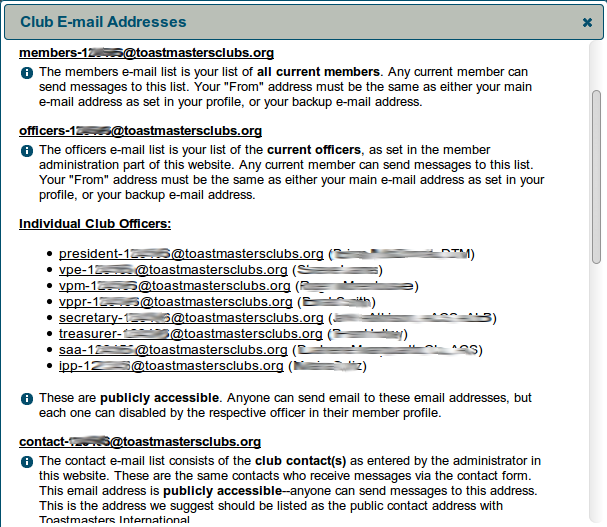
To send emails to a list, you must be a member and, in some cases, an officer.
In all email addresses shown below, replace "nnnn" with your club number.
If the text is too small in the chart below, you can use your browser's zoom to make it more readable.

Members may send email to:
This email address is being protected from spambots. You need JavaScript enabled to view it. This email address is being protected from spambots. You need JavaScript enabled to view it. This email address is being protected from spambots. You need JavaScript enabled to view it. This email address is being protected from spambots. You need JavaScript enabled to view it.
In addition, they may send to any custom email groups that have been set up for members.
Officers may also send email to the following groups:
This email address is being protected from spambots. You need JavaScript enabled to view it. This email address is being protected from spambots. You need JavaScript enabled to view it. This email address is being protected from spambots. You need JavaScript enabled to view it. This email address is being protected from spambots. You need JavaScript enabled to view it.
These four groups, and any custom groups based on them, may NOT be used by members.
Individual officer and other aliases
There are eight officer email aliases and two other aliases which are listed below.
nnnn is replaced by your club number.
This email address is being protected from spambots. You need JavaScript enabled to view it. This email address is being protected from spambots. You need JavaScript enabled to view it. This email address is being protected from spambots. You need JavaScript enabled to view it. This email address is being protected from spambots. You need JavaScript enabled to view it. This email address is being protected from spambots. You need JavaScript enabled to view it. This email address is being protected from spambots. You need JavaScript enabled to view it. This email address is being protected from spambots. You need JavaScript enabled to view it. This email address is being protected from spambots. You need JavaScript enabled to view it.
This email address is being protected from spambots. You need JavaScript enabled to view it. This email address is being protected from spambots. You need JavaScript enabled to view it.
In addition, the club may have other special email aliases. Ask your admin for details of those.
Anyone (including non-members) can send to these email addresses. Emails to them are then automatically forwarded to the person defined on the website. The recipient's real email address is NOT disclosed until that person replies to the email.
Any of the above officer and contact-nnnn email addresses can be disabled if they been a magnet for spam. The only exception is the
- Details
- Category: Documentation
-
By Jane Atkinson
Basic Information
Essential items
You need to include your name and your primary email address. All else is optional.
Your name can include your educational qualifications. When you achieve a new award, add it after your name.
If you have no email address, you'll see an "address" starting with "noemail"
Please leave this alone, unless, of course, you have just acquired an email address and wish to add it.
If you share an email address, for example with a spouse or partner, only one of you can use this address on the website. The other person will be regarded as having no email address.
If you enter a second email address, you can then use either address to send emails to the club mailing list. Tick the box shown if you want to receive emails at both addresses. This could be useful if you regularly use two email addresses e.g. work and home.

Allow admin to edit profile
This is enabled by default. (See circled box in image above.) It allows the site admin to help you if you're not sure how to change or add things to your profile.
Uncheck the box if you don't want the admin to be able to do this. He or she will still be able to see the content but not change it.
Include in public Meet Our Members page
If you enable this setting, your name, officer role (if any), photo, social media links (if any), and bio will show up in the public Meet our Members page.

Your email address and phone number will NOT appear.
Only you can enable this setting. The admin cannot do it for you.
Additional member settings
These are all optional.
Telephone number
Telephone number is visible only to other members, unless you are a club contact and have agreed to make your telephone number available.
Username for Logins
This is an alias that you use for logins only. If you define an alternate name here, you can't use your real name to login. The system won't recognise it at this stage.
Once you are logged in, your real name will appear in the list of logged-in members and all other website activities will be done under your real name. It will still appear in agendas, for example.

Member since
Enter the date that you joined the club. That information appears in some of the membership reports that club officers may use. It may also appear on membership badges, depending on how they have been set up – and if your club uses them.
Toastmasters Int'l Member ID
Enter your Toastmasters International membership ID
This will be used in future to allow speech reports to be compiled from your activity in more than one club which uses FreeToastHost.
Mentors

This allows you to see and select your mentors.

Select your mentor(s) from the multichoice menu.
Before you select anyone, make sure that they know. Also, check with your VP Ed that the club doesn't have another way of assigning mentors.
Email Settings
Club officer email address
If you are a club officer, an email alias will have been created for you (see http://support.toastmastersclubs.org/doc/item/email-lists-and-aliases for further details).
You can choose NOT to create an officer email alias for yourself by checking the arrowed box. Typically, officers will disable this email address if they are getting a lot of spam, since this email address is available to the general public.

However, if you are going to do this, please let your site admin know. (Otherwise, they may think that something is wrong with the website settings.)
Role change notifications, agenda notifications
You can choose not to receive emails from the agenda system, notifications about changes of meeting roles or other notifications, if you have problems with receiving too much email.

Before you change these settings, please check first with your club exec officers that this won't be causing any problems.
An exception is the unknown device and IP address notification. Disabling this will have no effect on the working of the site, but please note the warning in NOTE 2.
Use MAILTO Links in Agenda Emails
A "MAILTO" link is a special type of link that creates an email instead of loading a new web page or file. You can choose to use these types of links in agenda emails instead of the normal links so that you can sign up for roles in an agenda email without needing to provide your website password. Many users prefer the convenience of using MAILTO links because they do not need to remember their website password and they do not need to login to the website.

However, some email clients aren't easily set up to handle MAILTO links--this is why they are disabled by default. If your email client does not process MAILTO links in emails properly, then leave the box unchecked and you'll get a simplified login screen instead. You'll need to provide your password.
Exclude from emails
This allows you to avoid having emails sent to you between the dates entered in the fields.
Use the calendar popup to choose the dates.

It can be used, for example, as a vacation setting.
Note that, unlike the usual "Out of Office" feature, it does NOT let the sender know that you've turned your emails off. Please let members know beforehand.
Custom email groups
You can see which custom groups you belong to, if your club has set them up.
You can remove yourself from a custom group, but you can't add yourself to one. If you think that you should be a member of a custom group, you'll need to ask your admin to add you.

Member login messages
You can leave messages for yourself, perhaps to remind you to do something when you next sign in. They are displayed when you login.
The admin can also add messages in your member profile, which you'll see the next time you login. You then have the choice of leaving them there or deleting them.
If you've allowed the admin to edit your profile, you will get a message any time that he or she makes a change to your profile.
This function may be extended later to allow you to reply to the admin and to send messages to other members.
Social Links
This section is optional. Leave it blank if you wish.
Add your social media links in the fields provided.

If you have additional social media accounts, you can add them here. One account, and its logo if necessary, should be on one line. Separate account location and logo location with a comma:
E.g. http://newsocialsite.com/mypage, http://newsocialsite.com/images/icon.png
Member Bio/Photo
This section is also optional. You can use it to let your fellow members, and the public if you wish, know a bit about yourself.

The bio field is plain text only (no formatting). You have about 100 words to describe who you are.
You can also upload a photo which will be used in "Meet our Members" and also on the agenda if your club has this feature available. Your photo will be resized and cropped to 100x100 px.
If this isn't working well, you can edit the photo first to the right size. If all else fails, ask your admin for help.
If you need to rotate or delete the photo after you have uploaded it, use the icons under the photo. The trash can icon deletes the photo, and the arrow icons rotate it a quarter turn.
Forget me!

This button is at the very bottom of the Basic Information tab. Use it ONLY if you wish for all your information to be deleted from the site.
There is no undo, and no undelete — once your information has gone, it's gone.
When you click on the button, you will see the following screen.

To proceed with the deletion, type DELETE in the box and click on the OK button.
Finally, you need to click on the Close button to be logged out completely.

If you want to be removed from photographs or articles on the site, you'll need to contact the site administrator.
- Details
- Category: Documentation
-
By Jane Atkinson
Global Settings
These are for setting and configuring notifications.
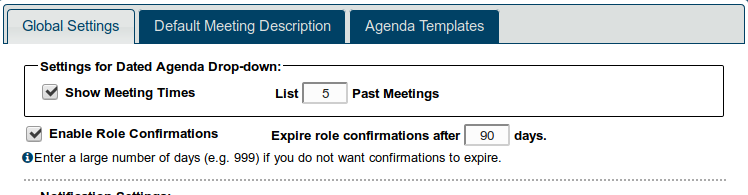
Settings for Dated Agenda Drop-down
You can choose to include the time as well as the date in the "View Another Agenda" drop-down. This could be useful for clubs with variable meeting times.
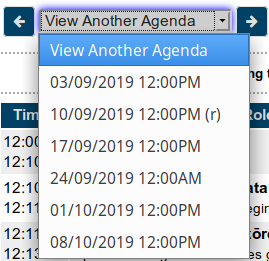
You can also select the number of past agendas that will show in this drop-down. Clubs meeting weekly may wish to display a larger number than those that meet less frequently.
Enable Role Confirmations
Checking this box allows Confirm links to be set up in the agenda.
Set the confirmation expiry time to something that makes sense for your club. Some like to have a role re-confirmed if it was originally confirmed a long time ahead of the meeting. If you don't want them to expire at all, set the number of days to something like 999.
Notification when a member takes, drops or confirms a role
If a member takes a role, confirms one or drops one, other members or officers can automatically be notified. This can help avoid problems caused by a member making changes of this kind without telling anyone.
You may choose one or more of
President
VP Ed
Club Secretary
Toastmaster of meeting
Table Topics masters
Member's mentor(s)
General evaluator
Click on the relevant box(es) in the multi-choice menu.
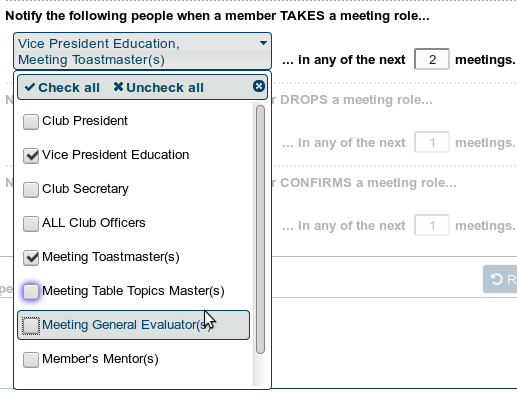
NB If a member signs up for a role more than 2 meetings in advance (using the above example), no notification messages will be sent. You can change the number in "next __ meetings" to suit your club. Any of the above settings can be changed at any time.
Introduction Template
You can enter some text here to act as a guide to members for creating a good introduction. It will be inserted into the Introduction box as a placeholder text. Members can then edit it as they wish.
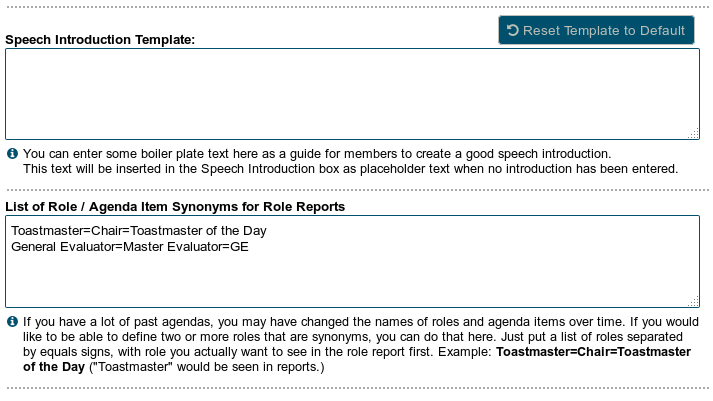
Role / Agenda item synonyms
If you have a lot of agendas going back a few years, the names of some of the roles may have changed over time. E.g. what was originally called "Toastmaster of the Day" may now just be called "Toastmaster". This will affect the accuracy of role reports.
In this box you can define the role names that should be considered to be equivalents. The first item in the list will be the one that appears in the role reports.
An example: Toastmaster=Toastmaster of the Day=Chair
All of those roles will be consolidated in the report, under the title of "Toastmaster"
Agenda Locked to Members
This is not strictly speaking something that an admin can set. It is activated automatically by the site a set time after the meeting. However, it's included here because sometimes there are problems with the agenda locking too soon.
If you are finding that the agenda is locked to members before the meeting, check the timezone setting on your site. It should be set to your local timezone. (See Basic Settings - Club Time zone
Default Meeting Description
The default meeting description (or agenda header) is automatically added to a new agenda every time one is created.
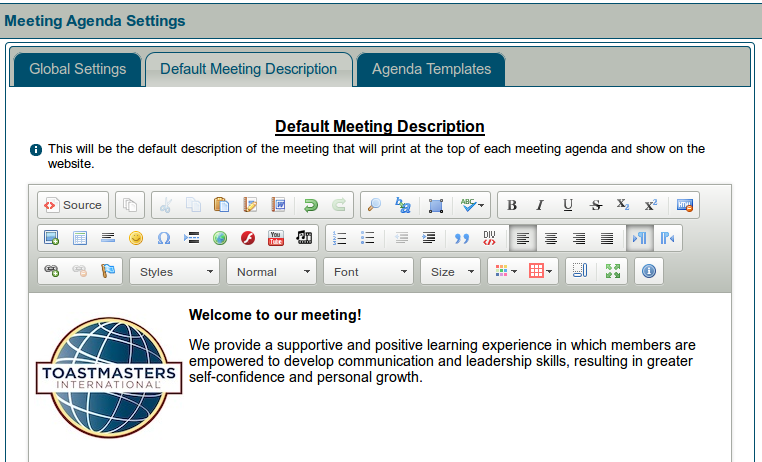
This is a word-processor-like window for editing content, as use, for example, when creating and editing custom pages. For further information, see Adding and editing content.
More Articles …
Page 14 of 29
Latest Forum Posts
-
- Club 1104 - who do I ask to fix the inaccurate rec...
- In Public Forums / FTH4 Support
- 48 minutes ago
-
- Modify or hide small club name between "Banne...
- In Public Forums / FTH4 Support
- 1 hour 56 minutes ago
-
- Club No. 1250 - Need to Edit our Club's Website
- In Public Forums / FTH4 Support
- 2 hours 30 minutes ago
-
- Club #6494 - Cedarbrae
- In Public Forums / FTH4 Support
- 2 hours 32 minutes ago
-
- The Admin-Entered Attendance (absent or excused) n...
- In Public Forums / FTH4 Support
- 4 hours 38 minutes ago