


- Details
- Category: Documentation
-
 By Jane Atkinson
Website anti-spam settings
FreeToastHost already has spam protection built in. If you're happy with the way it's currently working, you don't need to do anything.
This tab allows you to fine-tune the settings in case the defaults aren't working for your club.
White list
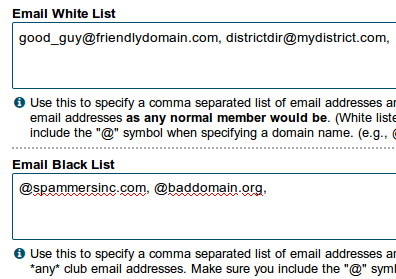
You can enter email addresses here that are allowed to send to groups that ordinary members can send to. You may want to add your club coach or club mentor to this list, for example.
You can also enter email addresses here that are "exceptions" to the Email Black List or the Crowd-Sourced Black List. For example, if you enter "
Enter each name or domain, separated by commas, and save.
Black list
If you are getting unwanted emails from just a few places or people, you can put the names in this list.
They can be specific email addresses, or whole domains. Entering a whole domain in a blacklist will stop email from anyone whose email address ends with that domain. For example, it will block
Enter each name or domain, separated by commas, and save.
Use "Crowd-sourced" Email Blacklist

Using this option checks your email sender addresses against the blacklists of all other clubs and districts using the system (the "crowd").
It is enabled by default. Uncheck the box if you don't wish to use it.
Two points to note:
- Mail may take slightly longer to be processed
- If you're likely to get legitimate emails from some of the blacklisted sites, you may want to add them to the Email White List (see above). Notifications from social media sites would be an example.
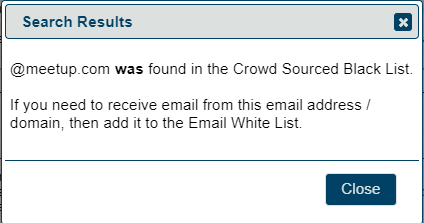
To determine if an email address or domain has been blacklisted via the "Crowd-sourced" blacklist, click on the "Search Crowd-Sourced Black List" button. The screen excerpts below give some examples of how this works. This search can help you to determine which email addresses you wish to receive email from are black listed by some club or district in the "crowd", and may need to be included in your Email White List.
 |
 |
Add "Is this SPAM?" links to publicly accessible email addresses

If you check this option, all emails sent to publicly-accessible email aliases will acquire a "Is this SPAM?" link at the bottom.
This makes it a lot easier to add addresses to the club blacklist, as it can sometimes be difficult to decide where a spam email actually originates from.
A notification will be sent to the site admin, who can check that the link hasn't been added by mistake (because of a misdirected click or other reason).
If you choose not to check the link, you will need to use the method below to determine where an email has originated.
How can you tell where a spam email comes from?
Emails may appear to come from
To determine this address, click on the "reply" button (BUT DO NOT SEND) and the spammer's address will appear in the address bar. Copy this address and add it to your blacklist. Then close the email reply without saving or sending.
Add "Not a Member?" links to Emails sent to Members via FreeToastHost

It can be easy to forget to remove members who have left the club or have chosen not to renew. We do recommend to review your Membership Management lists after each dues renewal cycle. However, even if you forget to do this, enabling this feature can help by inserting a link at the bottom of most emails to members to enable them to remove themselves from the member emails if they are no longer members. If they click the inserted link, they are automatically moved to the Former Members list. This is preferable to them sending the emails to their spam filters, which can adversely impact the email reputation of the FreeToastHost server.
WARNING
It appears that some email link-checking systems are clicking on these links, plus the link in the resulting "are you sure" email. This results in removing members from the list without their assent, which isn't the desired behaviour.
If you find that this is happening to your members, disable the setting so that the link isn't added to emails.
Note that this won't affect existing emails. If you need to forward an existing email, edit out the link before you send.
Anti-Spoofing phrase
This is a phrase that will be attached to emails that come through your FTH website. That is make it clear that a particular email did come via the club site, and not from some other source. Make sure that your members know what it is and why it's there, or it might even have the opposite effect to what's intended!
However, be aware that it doesn't guarantee that the content of the message is OK. If a member's email is hacked, for instance, it will still show the phrase.
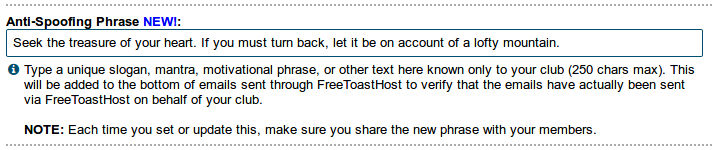
The choice of the phrase is yours, up to 250 characters long.
SpamAssassin setting
SpamAssassin is a spam filtering service that gives email a spam score depending on certain characteristics. The more items associated with spam that it contains, the higher the score will be. These can include Subject lines, a questionable domain of origin, and phrases that you would expect to see in a scam message.
A setting of 5 is the default for FTH, and is also common on other email systems. A lower setting stops more questionable email; a higher setting lets more of it through.
It's not perfect, though, and sometimes legitimate messages get mistaken for spam.
If you are finding that a lot of legitimate emails are getting blocked, you might want to raise the setting a little.

- Details
- Category: Documentation
-
By Jane Atkinson
Configuring site email settings
NOTE: Custom email groups are set up in the membership management area.
Recipient of replies
You can define who gets replies to certain types of emails.
These are member mailing list, group mailing list and officer mailing list.
Some clubs prefer replies to be sent to all members, or members of a group in the case of custom groups and officers.
Others decide that this makes for too much email and prefer fewer people to receive replies.
To set up the reply behaviour, click on the relevant field and make your choice from the pull-down menu.

Publicly accessible custom email groups
These are custom email groups with only one person in them. Set them up in the same way as other custom email addresses, but add only a single member.
This gives you a way of adding an additional officer with a publicly-accessible email address. This could be someone responsible for organising Speechcraft programmes, for example.
To enable this feature, check the box and save.

"From address" format
You can choose between Club First, Name Last, e.g.
Toastmasters Club nnnn on behalf of Yu Li
or, Name First, Club Last, e.g.
Yu Li on behalf of Toastmasters Club nnnn
where nnnn is your club number.
The first one is the default. You may wish to change it if your club members have a definite preference for the second.
Make your choice from the pull-down menu and save.

Subject prefix
You can add a prefix so as to make emails from your club more distinctive. This can be especially useful if members belong to more than one club which uses FreeToastHost.
Enter the new prefix and save.
For example, entering ABC TM will cause every email subject line to start with [ABC TM]
Club archive email address + login info
FreeToastHost acts as an email forwarding service only. It does not store emails.
If you want archived copies of your emails, you can set up a club account with a free email service such as gmail. Enter the club email address in the Email Archive Address field, and the password in the password field.
Be aware that this archives everything. You can't choose to archive only some emails.

Club email addresses
No settings are made here, but this tab allows you to see the email addresses and redirections that are in place, without needing to login as a member.
Receiving emails from Base Camp for Pathways
Emails from TI about Base Camp matters currently go to the address that's on file in Club Central. See updating club contact for details on what this is and how to change it.
If you wish to have those emails automatically forwarded to the VP Ed, President and Secretary, do the following:
Enable the "Contact us" email address in Email and Contact Forms
Update the Club Contact info in Club Central to the contact address
Any emails from
Automatic forwarding will also work if you have one of the publicly accessible officer email addresses in Club Central, in which case you don't need to enable the Contact us email address.
- Details
- Category: Documentation
-
By FreeToastHost
The Meeting Venues feature is an optional feature intended for experienced FreeToastHost users whose clubs meet in varying locations (venues) and/or online via virtual meetings (e.g. Zoom).
Typical examples of this are dinner clubs that meet in various restaurants, company clubs that meet in various conference rooms, and online clubs that use changing web conference URLs. The Meeting Venues feature can also be used to handle occasional changes of meeting venues for other clubs.
Essentially, the Meeting Venues feature allows for saving addresses, phone numbers, online meeting links (for virtual & hybrid meetings), web page URLs (for special meeting info, fliers, etc.), a venue photo, and miscellaneous information about a meeting venue, and provides functionality for effectively communicating this information in web pages, agenda emails, and the agenda sign-up page.
In the past, this information has been listed on the Meeting Information / Directions page and would have to be updated for clubs that having varying meeting locations. The optional Meeting Venues feature is intended to complement, not replace the existing Meeting Information / Directions page. Most clubs will likely continue to use their Meeting Information / Directions page to list the details of their single meeting venue that they meet in for each meeting, and that should be fine for them.
Add or Edit a Meeting Venue
The functions for adding or editing a Meeting Venue are accessible in the dated Agenda Editor and in the Agenda Templates Editor.
Meeting Venues can be saved with an Agenda Template to account for the possibility that different agenda styles may be needed for different Meeting Venues (e.g. in-person meetings vs online meetings).
The controls in the editors look like the following:
 |
 |
You can re-use a Meeting Venue that you have previously added for use in the agenda you are creating or editing by selecting it from the drop-down menu. Normally, you should check this menu first, as someone may have already added the meeting venue you want to use for the current agenda.

If you need to add a new Meeting Venue that is not in the drop-down, then click the plus button. You will see a blank entry form like the following:
 |
 |
 |
The only piece of information that is required to be entered to create a Meeting Venue is the Venue Name / Description. Other than this, everything else is optional--you can enter as much or as little information as you need for a Meeting Venue. The functionality is designed to work with whatever information you provide.
- Venue Name / Description (required) - This is the name or description of the venue that shows up in the drop-down selection list. It may be an actual venue name or it could be totally made up.
- Address (optional) - If you enter this, the system will attempt to provide a link to a Google Map. You can test whether the address you entered will result in the correct Google map if you click the View Map button at the bottom of the dialog after you enter the address.
Note: If you want to use the Google map functionality for a meeting venue, then you *must* enter a physical venue address. If you instead enter a Google Maps URL in the Meeting Room URL box, you will find that the maps functionality is not integrated with the use of that URL. - Phone Number (optional) - This can be useful for meeting venues where you need to confirm a reservation with the manager of the venue. For example, if your club is a dinner club that meets in restaurants.
- Notes (optional) - This is a "miscellaneous" information field that is intended for saving anything that is not entered in the other boxes. For example, you might enter information about the meeting room features: "This meeting room has a projector that we can use for presentations."
- Online Meeting Link Address (optional) - Use to share address/link to online meeting venue such as Zoom, MS Teams, WebEx, etc. When you enter a valid URL here (e.g., https://zoom.us/j/2323), the system code will convert that to a clickable link wherever it shows up.
- Meeting Venue Info Link / Web Page Address (optional) - Use to provide a link to an informational web page on your website (e.g., a custom web page) or somewhere else. When you enter a valid URL here (e.g., https://yourclub.toastmastersclubs.org/mtgflyer), the system code will convert that to a clickable link wherever it shows up.
Note: This box is not intended for supplying a Google Maps URL. See above note about that. - Meeting Venue Photo (optional) - This allows you to upload a photo of a meeting venue using the Upload Venue Photo. (If you have previously uploaded a photo, you can also just select it from the drop-down.) This is useful if your club members are unfamiliar with the meeting venue or are attending a meeting there for the first time.
If you need to edit the details for a previously created Meeting Venue, then select it from the drop-down and click the pencil icon button. The above form will be shown, but it will be pre-filled with the details for the selected Meeting Venue to allow you to make changes:
 |
 |
 |
Delete a Meeting Venue
If you want to delete a previously added meeting venue, then select it from the drop-down Meeting Venue menu, then click the button with the trash can icon on it. You will be asked to confirm the deletion.
View the Map for Meeting Venue
If you want to see the map for a previously added meeting venue, then select it from the drop-down Meeting Venue menu, then click the button with the globe on it. If you have previously entered an address for the selected venue that Google can understand, you will see a pop-up window with a map showing your meeting venue address on it.
If Google cannot understand your meeting venue address, you will see a map of the entire world instead.
Making Use of Meeting Venue Information
Once you have added Meeting Venues as detailed above, there are several ways you can make use of the Meeting Venue information. Once a meeting agenda has been created with a Meeting Venue set for it, the Meeting Venue information will show on the Agenda Sign-up screen complete with working links, similar to the following:

- Keep in mind that if you created a dated agenda from an Agenda Template, any Meeting Venue that was set in the Agenda Template would also be set in the resulting dated agenda that was created from it.
- Keep in mind that what you actually see in the Agenda Sign-up Screen depends a lot on how much (and what) information you entered for the specific Meeting Venue. The FreeToastHost system software will try to do the best it can to produce useful information on the Sign-up Screen based on the Meeting Venue information that you entered.
Meeting Venue Information in Emailed Agendas
Similar to the Meeting Venue information shown on the Agenda Sign-up Screen, the Meeting Venue Information for your meeting can be included in Emailed Agendas. To do this, you must first create the Meeting Venue (see above), then you must enable the option to include it in the Emailed Agenda:
 |
 |
Meeting Venue Variables in Web Pages and Emails
If you are familiar with the use of Web Page variables and Email Variables, you will notice that there are some variables available for the Meeting Venue information for the next meeting. You can insert these variables into web pages and agenda emails. You can even insert the variables into the Meeting Information / Directions page to make it dynamically update to show the correct Meeting Venue information for your next meeting.
 |
 |
- When you use the {{nextmtgvenueaddr}} variable, the system code will replace it with a clickable link that is directed to a Google map showing your venue address.
- When you use the {{nextmtgvenuephoto}} variable, the system code will replace it with a image (<img>) element that will fill the entire width (100%) of the space you put it in. This is as designed. If you need the width to be narrower, then you should place the variable in something that you can use to control the width--for example, a single row, single cell table, or a <div> element. If you need assistance to get the width right, please post a support request in the support forums.
- When you use the {{nextmtgvenuezoomurl}} variable, the system code will replace it with a clickable link that is directed to the web page corresponding to the URL you entered for the Online Meeting Link Address. Note that while the variable name references "Zoom" meetings, the variable can be used to retrieve the URL/link for any online meeting type.
- When you use the {{nextmtgvenueinfourl}} variable, the system code will replace it with a clickable link that is directed to the web page corresponding to the URL you entered for the Meeting Venue Info Link / Web Page Address.
More Articles …
Page 3 of 29
Latest Forum Posts
-
- Modify or hide small club name between "Banne...
- In Public Forums / FTH4 Support
- 1 hour 17 minutes ago
-
- Club No. 1250 - Need to Edit our Club's Website
- In Public Forums / FTH4 Support
- 1 hour 50 minutes ago
-
- Club #6494 - Cedarbrae
- In Public Forums / FTH4 Support
- 1 hour 52 minutes ago
-
- The Admin-Entered Attendance (absent or excused) n...
- In Public Forums / FTH4 Support
- 3 hours 59 minutes ago
-
- How to become an FTH support volunteer?
- In Public Forums / FTH4 Suggestions and Improvements
- 4 hours 6 minutes ago