


- Details
- Category: Documentation
-
By Jane Atkinson
- Hits: 8275

Applying colour to certain sections of your website, and other refinements
The following settings allow you to fine-tune the appearance of your website. Any of them can be changed later, if you decide that you don't like them.
Banner text
This is for fine-tuning the text in your website header if you don't like the default appearance. You might want to add extra text (or your club number) or change where one line ends and the second begins.
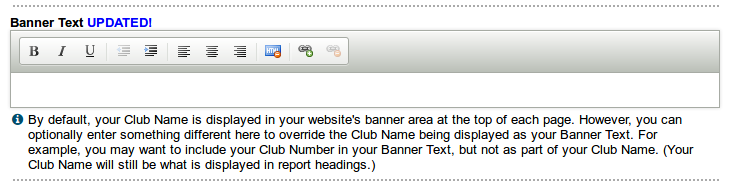
Changes made here will not appear in report headings, which use the club name in the Basic Settings tab.
Text and Background Colors
You can change the text and background colours of various parts of your site to give it a distinctive appearance.
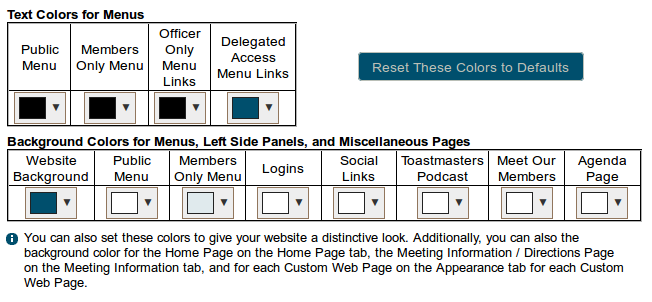
Click on the item you wish to change, then select a colour. The bottom three rows in the colour selection box are the website theme colours.
If you want to define your own colour, enter the HTML colour code in the text box.
Note: The background colour setting appear in a number of other places in the admin panel. Each works the same way.
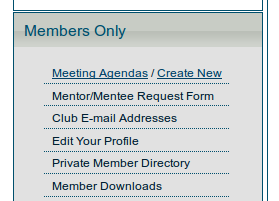
An example of a menu with coloured text and a coloured background.
Be very sparing with strong colours. It's not a good idea to use strong magenta or red as a background colour, for example. While a bright colour might look great to you, it may be a bit too harsh for people visiting your website.
If you want to remove all custom colours and start again, click on the button.
Layout adjustments
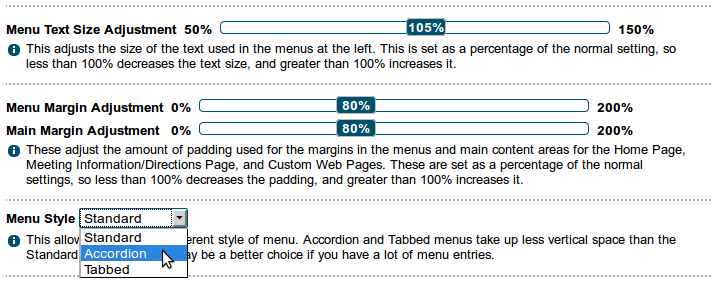
Menu Text Size Adjustment
This allows you to adjust the size of the text in the menus on the left-hand side. For example, you might want to reduce the size slightly if you're using longer lines of text.
Menu Margin Adjustment
This adjusts the amount of padding or width used for the margin in the left-hand menu. Lower figures mean less of a gap between the text and the border.
Main Margin Adjustment
Similarly, this adjusts the amount of padding or space around the items in the main panel. You might want to use this if you have a table that you want to include that won't fit otherwise.
Menu Style
You have a choice of the standard menu, a tabbed menu with separate tabs for public and members only menus, and an accordion-style menu which is rather similar to the panels at the bottom of the main home-page area.
A standard menu takes up more vertical space than the other two styles, so if you have a lot of menu entries, you may wish to use the tabbed or vertical styles.
Background wallpaper
You can use an image as a background pattern or wallpaper for your site. This can be one of the supplied images on the list, or you can upload your own.
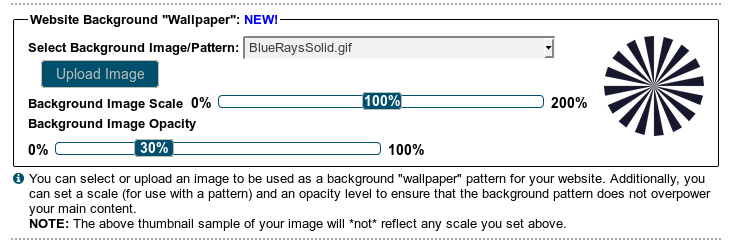
The most suitable image type is GIF. JPG images aren't transparent, and PNG images tend to be too large. Anything too large will slow down the loading of the website.
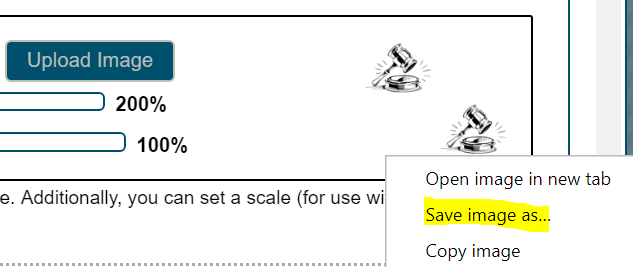
If you want to modify any of the supplied images, you can save the image to your own computer using the "Save image as" option and then edit it before uploading it again.
Hide menu links
This allows you to turn off items that you don't want to appear in your website.
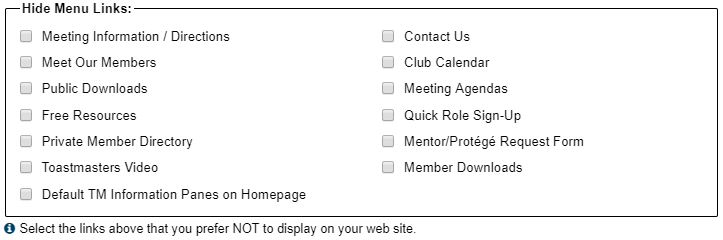
In this example, the Toastmasters video and the default TI information panes have been turned off.
Check the boxes that you don't want to appear, and SAVE.
Disable ALL Members Only Features
Checking this box will turn off all the member-only features and leave a site that is public access only.
This can be useful for clubs who have other methods for organising agendas and other member-only activities.
Be aware that if you check this box, ALL member-related features will be disabled or hidden, including the Meet Our Members page.
- Details
- Category: Documentation
-
- Hits: 377902
Use this page to find your way around the help files.
Important information for everyone
FreeToastHost Terms of Use agreement Privacy and Cookie policy Cookie policy
For members
The items in this section, in blue boxes, are for club members without special privileges. (But if you are an officer or admin, it is also a good idea to start here.)
New to FreeToastHost sites?
Browsing the site and logging inIf you are having trouble logging in or getting changes to "stick", try these first:
Cookie settings
Clearing the browser cache
Using email
Accessing and using the club mailing lists
What email addresses are available on a FTH site?
Receiving email, if you're not getting emails and especially if you use gmail or hotmail
Using the agenda
Role reports and signup sheets
If you need to know how to edit an agenda, go to this page
For administrators
These items, in the burgundy boxes, are for site administrators.
Club officers and the Toastmaster of the meeting (or equivalent) may also be able to use some of these functions.
It's still a good idea to get familiar with the members' perspective first, by referring to the items above.
Are you a new website admin?
If you're completely new to FTH, check the New to FTH section.
To get up and running with a basic site, see our quick start page
Website settings
What's the difference between Aliases and Domain names?
Domain names and aliases: some practical considerations
Configuring DNS Settings for a Custom Website Domain
Appearance (includes turning off unwanted content)
Adding content to your site
Adding and editing content. This also applies to all page types below.
Web page tools. Also usable on all page types.
Meeting Information / Directions
NB: Google cache no longer exists. Backup your custom content NOW, before it's lost forever.
Membership management
There is quite a lot to this topic, so has its own index page. Fortunately, you don't need to learn it all at once.
Email and contact forms
Configuring the email settings
Ensuring that members receive email
Agendas
There is also a lot to this topic, and it has its own index page.
Extras
Using the webpage editor – online demo (CKEditor Users Guide)
Changing site administrators when the previous one is no longer available
Updating contact info on Toastmasters International website
End of year Officer Changeover Checklist for your FreeToastHost website
Pathways Support in FreeToasthost
- Details
- Category: Documentation
-
- Hits: 1233
Basic Settings
When you first open the admin console, you are presented with the Basic Settings area.
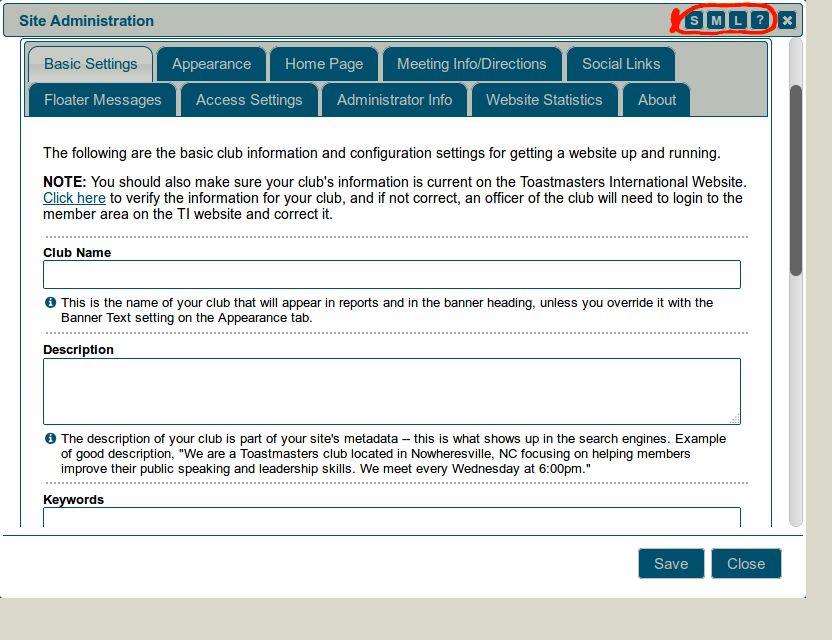
The image shows only a few of the fields that are described below. They are for defining some of the most important details about your club site: its name, information for search engines, and the timezone.
The S, M and L buttons at the top right (circled) are for quickly resizing the admin console to suit your screen size. The ? button takes you directly to the help docs index page. These buttons are visible on all main admin area consoles.
Club Name
Enter your club's name. This is what will show up in the header (or banner) of the site (i.e. the large text across the top of each page). You can fine-tune that in the Appearance tab (see below), but this is optional.
Description
This is for a basic description of your club. Make it interesting and unique. What's special about your club? What kind of members do you want or have? Where are you located? This is a very important field for search engine rankings, and it's worth spending time on.
Keywords
This field is much less important. Some search engines ignore it altogether. By all means put something there if you want, but trying to include every keyword imaginable isn't likely to achieve much.
Alias or Domain
Most clubs use one or the other, but not both.
You can use both at the same time, particularly when you are changing from one to the other. See http://support.toastmastersclubs.org/doc/item/domain-names-aliases-practical-considerations for details.
For help with choosing an alias, see http://support.toastmastersclubs.org/doc/item/website-alias
If you are using a domain name, the DNS entries must be set up and working first. See http://support.toastmastersclubs.org/doc/item/dns-settings-overview
If you have no idea what this is about, see http://support.toastmastersclubs.org/doc/item/alias-and-domain-names-whats-the-difference
You can manage without either, just using your club number before "toastmastersclubs.org", but that's not very distinctive.
If something goes wrong with your alias or domain setting, you can always access your site using the
club number + toastmastersclubs.org combination.
Registrar Information
If you have a custom domain, you can record important details here, such as registrar name and web address, expiry date and login information. Your successor will surely thank you for this!
Locale Settings
These control the time and date configuration for your locality.
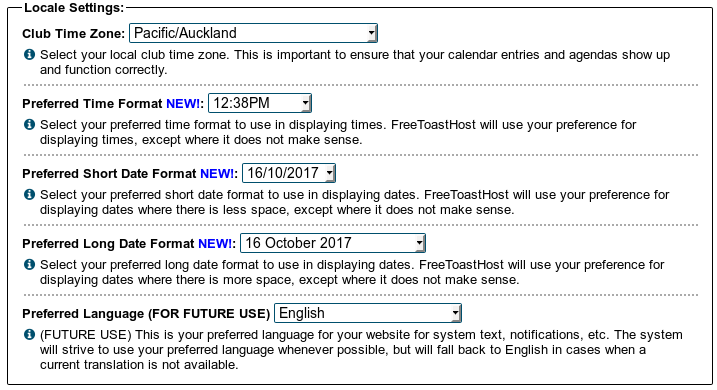
Club Time Zone
Use the pull-down menu to select your club time zone.
- There may be more than one option for your locality. Choose the region/city format, as shown in the list below.
- If you're having problems with incorrect times showing, check which format you've used and change it to region/city format if you're not already using that.
This time zone takes daylight saving into consideration, and you shouldn't need to change anything when the clocks change.
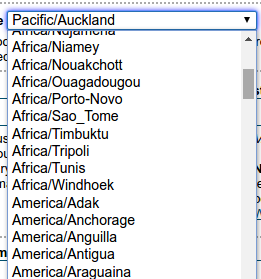
The Time Zone is set to "GMT" by default.
If you have created recurring events they will not automatically be fixed. You have to remove them and recreate them AFTER you set your local time zone.
If you have created agendas that display the wrong time on the calendar, just open the agenda as admin, click the edit button, then click the edit button for any agenda item, then save the agenda. This will rebuild the calendar time for the agenda.
Date and Time Formats
Choose the most appropriate options from the pull-down menus.
Remember to SAVE your settings before you move on to something else.
- Details
- Category: Documentation
-
- Hits: 6859
Typical Email Issues and How to Resolve Them
Topics on this page
- "I sent an email to the members/officers list and *nobody* got it."
- "I sent an email to the members/officers list and *some people* never got it. (some did)"
- "I sent an email to our officers using their officer email addresses (aliases) and one or more did not get it."
- "I was told to send an invitation to our guest list and/or former members list, but I keep getting an error back when I try to send it."
- "I tried to send out the agenda, reset my password, etc. from our website and the email never went through."
- "Why am I getting an error when I click a link to send an email from the club email listing?"
- "I am a club/district officer. How do I access my FreeToastHost email account for my officer email address?"
- "I received an email from our club/district website and it appears to be coming from a someone that is no longer a member of our club."
1. "I sent an email to the members/officers list and *nobody* got it."
- Verify that the destination email list address is correct. We can check if the system thinks it is invalid. Also, new or modified email addresses are validated in Membership Management. You can force an email address to be re-checked in Membership Management by simply typing a space on the end of it and clicking save. (The space will get removed by the code.)
- If the sender got a bounce email back, what does it say? Often, a user will try to send an email from their work email address, but they forgot to add it as a secondary email in their member profile so that the system will "recognize" them and let the email pass.
Email bounce; always check the bounce message as it contains the reason for the delivery failure.- One example of a delivery failure specific to FTH functionality is a club member attempted to send from an address (such as work) that is not the primary and secondary email address in their profile. In this case you will see a bounce message that begins with "You do not have the right permissions to send an e-mail to this e-mail address..."
- Check that there is nothing blocking *outgoing* emails on the user's end. Spam control is a continuously evolving technology and you may find a new blocking behavior on *outgoing* email to recipients that your email provider deems as suspicious. That seems to happen with Hotmail a bit and also with corporate email (w/ company clubs).
- If you are using a custom domain, your DNS settings may be incorrect (MX setting). You can use the following to review and check your settings.
- Review the FTH help document and ensure your DNS settings are correct:
- Various tools are available to check DNS settings for custom domains. Three examples are linked below:
- http://www.geektools.com/digtool.php
- https://www.digwebinterface.com
- A DNS lookup tool is built into the FTH admin console; Site Administration > Basic Settings tab.
- See the link below your custom domain: DNS record lookup of [your custom domain name]
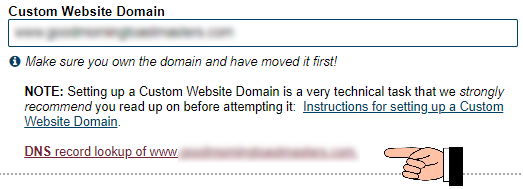
- See the link below your custom domain: DNS record lookup of [your custom domain name]
- The club/district Spam Assassin threshold score may be set too low in the Email and Contact Forms module. This can cause emails to be incorrectly filtered out as spam. ("false positives")
- After you have checked the items above and confirmed the issue is still present please start a new forum thread that includes your club number and at least the first name of the member with the email issue. (provide clarity if the first name identifies more than one club member).
With the club number and member's email address the FTH team can check;- The sender's ISP may be on SpamCop or similar which will cause it to be blocked by the FreeToastHost server.
- The sender may be blocked by the server for other reasons. The FreeToastHost support team can check this.
- We can check the FTH email logs to determine whether the email was ever processed by FreeToastHost.
- We can check the FTH email logs to determine whether the email was received by any end recipients.
- If the FTH support team requests the raw email header and you are unsure what this is or how to find it please review this help document: https://support.toastmastersclubs.org/doc/item/email-headers
2. "I sent an email to the members/officers list and *some people* never got it. (some did)"
- See directions in 1 above.
- Have people who did not get the email check their spam/junk email filters on their end.
- Verify that the people who did not get the email actually are in club/district's Membership Management and that their email addresses are correct. Typos are more common than you may think.
- Verify that the affected member(s) did not have an active 'Exclude' date range in their profile when the missing email was sent.
- Please review the sections of the member profile help doc that pertain to email: https://support.toastmastersclubs.org/doc/item/member-profile
- Verify that the affected member(s) email address was not inadvertently put on the Email Black List.
- If you are using the 'Crowd Sourced Black List' also check this for their email address. It's possible for members of multiple clubs to inadvertently get added to this list and affect their ability to receive email from your club.
- Please review the tools in your FTH site for managing spam: https://support.toastmastersclubs.org/doc/item/reducing-spam
3. "I sent an email to our officers using their officer email addresses (aliases) and one or more did not get it."
- Usually, this is an officer email address that has been disabled in their member profile. If the officer has their profile set to allow admin edits, the club admin can open the officer's profile via Membership Management to assist with this setting. (But you should ask the officer for permission to do that first.)
- Please review the sections of the member profile help doc that pertain to email: https://support.toastmastersclubs.org/doc/item/member-profile
4. "I was told to send an invitation to our guest list and/or former members list, but I keep getting an error back when I try to send it."
- You (or the sender) are likely not a club/district officer. Only officers can send to those lists. Tell the sender that the club can make them an "Other Officer" and then they will be able to send to the lists.
5. "I tried to send out the agenda, reset my password, etc. from our website and the email never went through."
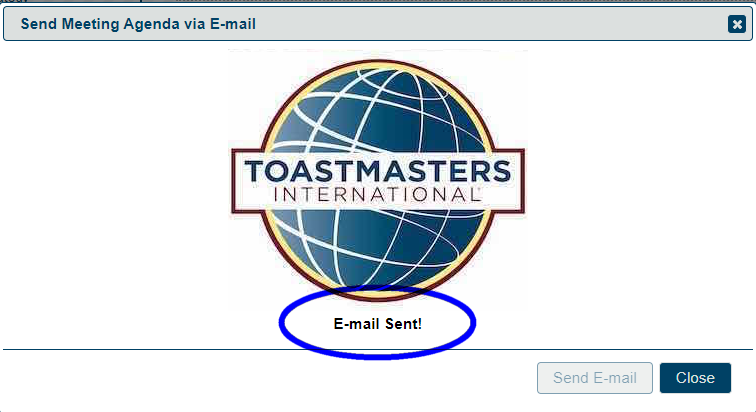
- The key thing here is that these emails were sent ***from the website***. Emails sent from the website are handled *differently* than those a user sends from their email program or webmail. When sending email from the website, sometimes there can be a bit of a delay during high website usage (e.g. Mondays). There is a spinner that is displayed while the system is trying to send the email. If you do not wait for the spinner to stop and the Toastmasters logo to display, then your email may not be sent. You need to be patient and let the spinner finish and the logo to be displayed.
6. "Why am I getting an error when I click a link to send an email from the club email listing?"
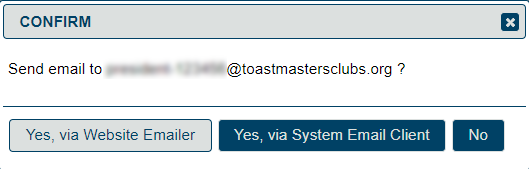
- The email links will present two options;
- 'Yes, via website emailer' will process your outgoing email using the FTH email forwarding system.
- 'Yes, via System Email Client' (Outlook, Thunderbird, etc.) where 'System' is your device. You must have a default email client installed on your system for this link to work. Otherwise you may see a prompt to install/configure an email client or you may see an error message.
- The FTH email forwarding system cannot connect to and process email directly through a webmail system. (Gmail, Hotmail, etc). The first option above 'via website emailer' is designed for this purpose.
7. "I am a club/district officer. How do I access my FreeToastHost email account for my officer email address?"
- FreeToastHost is an email ***forwarder*** and does *not* provide email accounts. *All* of our email addresses and distribution lists *forward* to another email address that users have put into the system (Membership Management). There are no email accounts.
8. "I received an email from our club/district website and it appears to be coming from a someone that is no longer a member of our club."
- What is most likely happening in this case is that your email provider is caching the display name of the server email address,
This email address is being protected from spambots. You need JavaScript enabled to view it. orThis email address is being protected from spambots. You need JavaScript enabled to view it. . Gmail definitely does this. What this means is that the first descriptive name (usually a person's real name) associated with an email address is being saved and re-used for every email from that same email address afterwards, even if the display name is different in subsequent emails. While this can be confusing, there is an easy fix... Just create a contact entry in your email contacts for the server email address and put an appropriate name (or FreeToastHost Server) in for that contact entry. - If you are using an email client such as Thunderbird, you may have an address book entry with the former member's name in it. Either delete the address book entry, or edit it to remove the person's name. As suggested above, you could add a generic name such as FreeToastHost Server.
- Details
- Category: Documentation
-
- Hits: 13363
How to take and upload a screen capture to the FreeToastHost support forums.
- It is frequently helpful to see what a user is seeing on their screen when trying to help them resolve a problem with their website. This article describes how to capture your screen to a file, then upload it as an attachment to a support forum message.
- In Microsoft Windows, there is a great accessory included called the Snipping Tool (now called "Snip & Sketch") that greatly simplifies taking screen captures from part of the screen. Read here for details on this: MS Windows Snipping Tool
- If you are using an Apple computer, the basic instructions for taking a screen capture are here. The general process is to capture the screen, then paste the captured image into an image editor (like the Apple Photos app, MS Paint, or similar), crop the image to the desired size, then save the image to a file in a location that you can remember and retrieve from below (in Step #6).
- If you are using an Apple computer, the basic instructions for taking a screen capture are here. The general process is to capture the screen, then paste the captured image into an image editor (like the Apple Photos app, MS Paint, or similar), crop the image to the desired size, then save the image to a file in a location that you can remember and retrieve from below (in Step #6).
- In MS Windows, you can activate the Snip & Sketch capture menu by pressing the Windows + Shift + S keys at the same time. You should then see a menu at the top of your screen that will allow you to select the part of the screen to capture.
- Once you have selected the desired part of the screen, the Snip and Sketch program should open with the captured screen image loaded to allow you to annotate and/or crop the image. In the image below, the crop icon is circled in red.

- Once you have finished modifying the captured image, save it using the save icon (circled in blue above). Save the resulting picture as a jpeg file, with a meaningful name, noting where it is saved to. If you have a difficult time following the folders, save it to your desktop.
- Log in to the FTH2 support forum.
- Click on new topic, and enter the subject of your problem or question.
- Enter the message, making sure you have also supplied your club number.
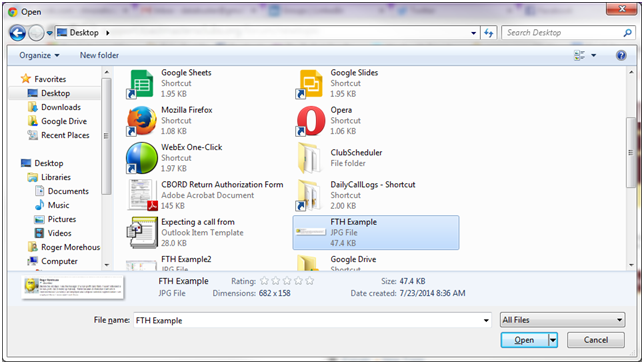
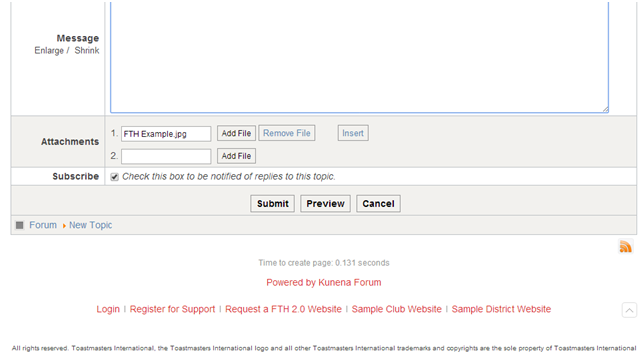
- Below the message field is a button named Add File. Click on the Add File button. Navigate to the folder (or desktop) where you saved the picture. Click the file name and then click the Open button.
- The file name will now be listed in the attachments.
- Click the Submit button.
Search Keywords: Screen Shot, screenshot, Screen Capture, attachments, Paint, Paintbrush, troubleshooting
More Articles …
Page 6 of 9
Latest Forum Posts
-
- Single email to guests@ has been sent out 10x now!...
- In Public Forums / Support Requests
- 1 hour 51 minutes ago
-
- Please delete custom page
- In Public Forums / Support Requests
- 7 hours 16 minutes ago
-
- Matrix view of speakers/evaluators
- In Public Forums / Improvement Suggestions
- 7 hours 22 minutes ago
-
- Linking roles/series to paths
- In Public Forums / Improvement Suggestions
- 8 hours 8 minutes ago